Fusion 360 Pattern Tools: Creating Repeating Designs for 3D Printing
Discover how Fusion 360's pattern tools can revolutionize your 3D printing designs. Learn to efficiently create complex repeating patterns for stunning models.
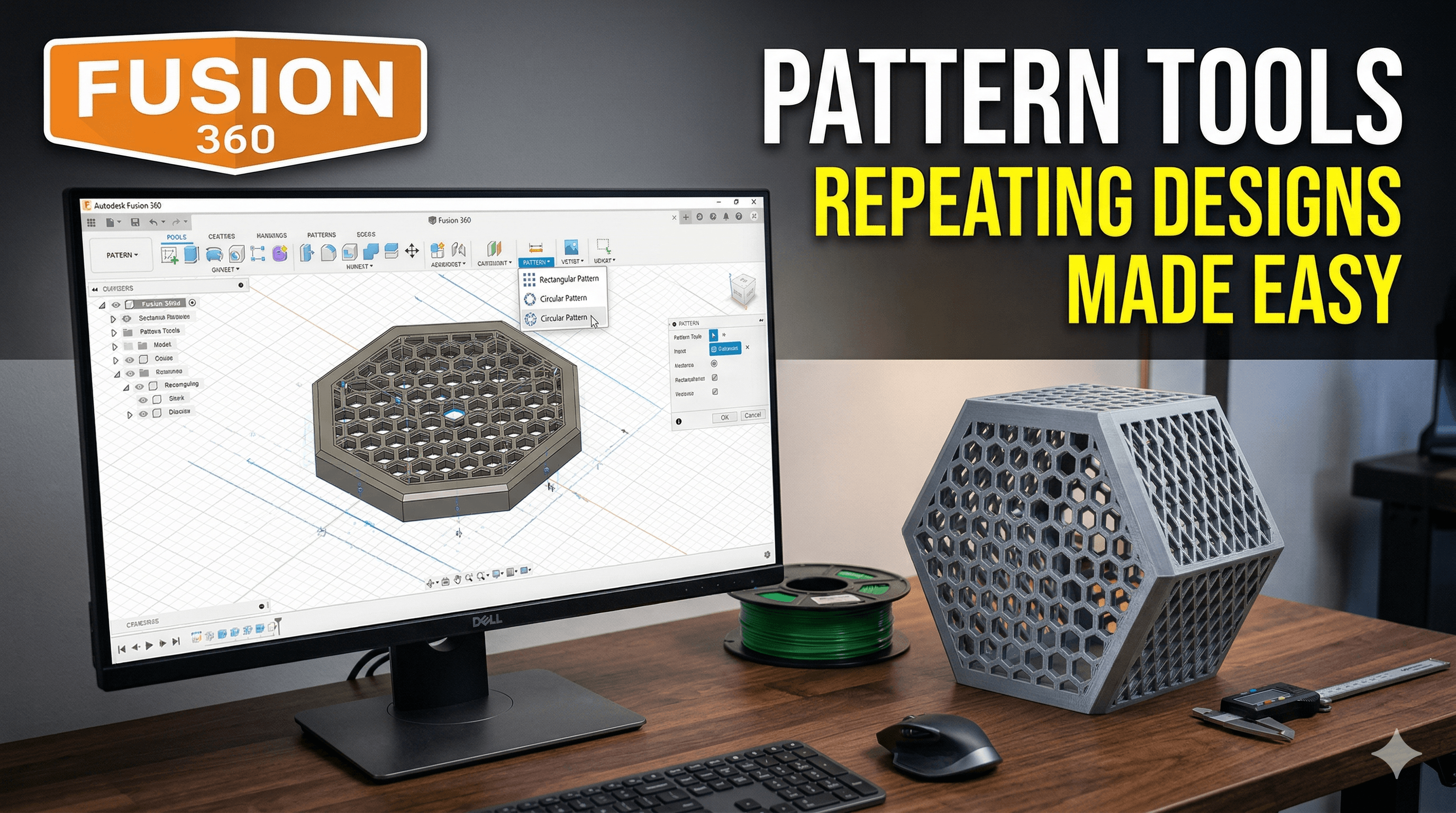
Chalo, let's talk about something that literally saved my sanity (and my sleep cycle) when I started ArtOpia Collections – Fusion 360's incredible pattern tools. Honestly, if you're still manually copying and pasting elements to create repeating designs for your 3D prints, you're basically living in the Stone Age, bhai! I've been there, trust me. Hours spent nudging a tiny circle just right, making sure all 50 of them are perfectly spaced for a speaker grille, only for one to be slightly off. Uff, the frustration was real. And then, I discovered the magic. It was like someone handed me a superpower to multiply my designs with a click.
You see, when I first got into 3D printing and started ArtOpia, I was all about the "jugad" mentality – whatever works, right? But as client projects got more complex, as I tried to design intricate jewelry stands or custom ventilation covers, the manual method just wasn't cutting it. Time is money, especially for a small business here in India, where every rupee counts. I can't afford to spend three extra hours on a design that a tool could do in three minutes. That's precious time I could be using to get another printer running, or talking to a new client, or, you know, actually eating some proper dinner instead of just chai and biscuits!
Fusion 360, for all its quirks, became my go-to CAD software. It's powerful, it's relatively easy to learn compared to some other beasts out there, and the best part for us small businesses? The personal license is free! That's a huge deal. And within Fusion 360, these pattern tools – Rectangular Pattern, Circular Pattern, and Pattern on Path – they're the unsung heroes that transform tedious tasks into creative playgrounds. Let's dive into how these bad boys can totally revolutionize your 3D printing design workflow.
Rectangular Pattern: Your Go-To for Grids and Grilles
Alright, first up, the Rectangular Pattern. This one is probably the most straightforward and often the first one people get comfortable with. Think of anything that needs to be laid out in a grid – literally, a grid! Ventilation grilles, modular shelving unit connectors, pegboards, even those tiny holes in a sieve-like filter. This is your tool.
I remember a client wanted a custom enclosure for a mini PC, and it needed a specific pattern of air vents on the side. Initially, I just drew one vent, copied it, moved it, copied it, moved it… it took forever. And getting them perfectly aligned and spaced? Argh! But with Rectangular Pattern, I just designed one vent, selected it, chose the direction (X-axis, then Y-axis), told Fusion 360 how many instances I needed in each direction, and set the spacing. Boom! Done. In literally seconds. I mean, who has the time to do that manually, right?
Here's how it generally works:
- You create your "seed" feature or body – that one single element you want to repeat.
- You select the Rectangular Pattern tool.
- You pick the object (feature, body, or component) you want to pattern.
- You select the direction axes. These are usually sketch lines or edges of your model.
- Then, you define the quantity and spacing for each direction. You can choose "spacing" (distance between centers) or "extent" (total length for all instances).
I personally find "spacing" easier to visualize most of the time, especially when I know I want a 5mm gap between my repeated elements. But for something like making sure all instances fit precisely within a 100mm area, "extent" comes in super handy. You can even choose to pattern in only one direction if you need a simple linear array. It's incredibly flexible. We've used this countless times for creating custom phone stands with speaker grilles, or even some of the textured panels you might see on our ArtOpia Collections products page – it's just so efficient.
One little tip from my experience: sometimes, Fusion 360 gets a bit sluggish if your seed feature is super complex and you're trying to pattern it a thousand times. It's usually better to create a simpler form first, pattern it, and then add complex details later if needed. Or, sometimes, it's better to pattern the sketch first and then extrude all the patterned profiles. Play around with it; you'll find what works best for your specific design.
Circular Pattern: Spin Your Designs into Awesome Shapes
Next up, the Circular Pattern. This one is pure gold for anything that spins, radiates, or has a central axis of symmetry. Think gears, fan blades, intricate mandala designs, decorative coasters, multi-faceted jewelry components, even the spokes on a tiny wheel. If it goes around a point, this is your tool.
I remember designing some custom gears for a small educational robot kit for a school project. Drawing one gear tooth, then painstakingly rotating and copying it for all 20 teeth? Nope. Never again. With Circular Pattern, I drew one tooth profile, selected the tool, chose the body, picked the central axis (usually an origin axis or a circular edge), and told it to make 20 instances. Done in a blink. It was so satisfying to see all those teeth perfectly aligned around the central hub.
The process is quite similar to Rectangular Pattern:
- Create your "seed" feature, body, or component.
- Select the Circular Pattern tool.
- Pick the object you want to pattern.
- Select the central axis. This is crucial – it needs to be an axis around which your pattern will revolve. Could be an origin axis (X, Y, Z), or the center line of a cylinder, or even a drawn sketch line.
- Define the quantity. You can also set the angle (e.g., if you only want to fill a 180-degree arc with your pattern).
One common mistake I used to make was picking the wrong axis. If your object is standing upright and you want it to pattern around its base, you'll need to select the Z-axis (or whichever axis runs vertically through the center of your base). If it's lying flat and you want it to radiate outwards on the XY plane, you'll pick the Z-axis that comes *out* of that plane. A little trial and error, and you'll get the hang of it.
Circular patterns are fantastic for creating really cool aesthetic elements too. For instance, I once made some custom bottle openers as gifts for friends, and I used a circular pattern to create a knurled grip pattern around the handle. It made them look super professional and gave them a great tactile feel. And printing them? I usually use something robust like eSun PLA+ or Overture PLA. You can find some good quality eSun PLA+ filament on Amazon India, usually for around ₹1200-₹1800 per kg, depending on the color and seller. It's strong and prints reliably, which is what we need here.
Pattern on Path: The Real Game-Changer for Complex Curves
Now, this is where things get really exciting, and where Fusion 360 truly shines for organic and complex designs: Pattern on Path. This isn't just about straight lines or circles; this is about taking an element and making it follow *any* path you define. A wavy line, a spiral, a complex spline – you name it. This is how you create things like flexible chains, intricate decorative borders, unique textures that follow the contours of a part, or even articulated models.
I'll be honest, when I first heard about this, I thought it sounded super complicated. But once I tried it, I realized its potential. Imagine designing a flexible bracelet – you design one link, then tell it to follow a path that describes the curve of a wrist. Or a decorative trim that winds around an object's edge. This tool is ridiculously powerful for adding detail and functionality that would be impossible (or at least, incredibly time-consuming) to do manually.
Here’s the breakdown:
- You need your "seed" object, just like before.
- Crucially, you need a "path." This is usually a sketch line, an arc, a spline, or even an edge of an existing body. This path dictates where your patterned objects will go.
- Select the Pattern on Path tool.
- Choose your object (feature, body, component).
- Select your path.
- Define the quantity and type of distribution (spacing or extent).
- You can also control the orientation – whether each instance keeps its original orientation or aligns itself to the path. This "path direction" option is KEY for things like chains or patterns that need to bend with the path.
Let's say I wanted to make a custom lamp shade with an intricate, flowing pattern. I'd sketch a complex spline on the surface of the shade, design one small decorative element, and then use Pattern on Path to make that element repeat along the spline. The result? A stunning, unique design that looks incredibly complex but was relatively easy to create once you understood the tool. This is exactly the kind of thing that elevates a print from "cool hobby project" to "wow, that's professional."
The "orientation" part is where you'll do most of your experimentation. For a flexible chain, you want each link to rotate and align to the path. For a decorative element where you want each instance to face the same way regardless of the path's curve, you wouldn't align to the path. It's all about what visual effect you're going for. And trust me, it’s worth spending some time on this particular tool because it opens up so many creative avenues for your 3D printing projects.
General Tips & Tricks for Patterning in Fusion 360
Okay, so you've got the basics of the three main pattern types. But here are a few extra nuggets of wisdom I've picked up over the years:
- Design the "seed" wisely: The simpler and cleaner your initial feature or body, the easier and faster Fusion 360 will process the pattern. Avoid unnecessary details on the seed if they can be added after patterning, or if they add too much complexity.
- Timeline awareness: Pattern tools create a single entry in your Fusion 360 timeline. This is great for editing! You can go back, double-click the pattern feature, and change the number of instances or the spacing, and the entire pattern updates automatically. This parametric design is what makes Fusion 360 so powerful.
- Computational load: A lot of instances can really slow down your computer, especially if it's an older one. I've had my share of Fusion 360 crashes when I tried to pattern a *really* complex feature a *hundred* times on my older laptop. Save frequently! And sometimes, patterning a sketch and then extruding is faster than patterning a solid body.
- Patterning Components vs. Bodies vs. Features: Understand the difference. Patterning a "feature" (like an extrude or a hole) is great for adding details to a single body. Patterning a "body" creates multiple separate solid bodies. Patterning a "component" (a group of bodies and features, often with joints) is for creating assemblies of repeating parts, which is super useful for things like flexible chains where each link is its own component.
- Experiment, experiment, experiment: Don't be afraid to try different settings, different paths, different quantities. That's how you learn what works and what looks good. My journey with ArtOpia Collections has been 90% experimentation and 10% pure genius (okay, maybe 95% experimentation!).
These tools, my friends, are not just about making your life easier (though they totally do!). They're about empowering you to create designs that were previously too complex, too time-consuming, or just plain impossible with manual methods. They unlock a new level of creativity. For someone like me, who's trying to build a business around custom 3D printed goods and design services, efficiency and complexity are huge selling points. If I can design a custom-textured grip for a product in minutes instead of hours, that's a direct saving for my client and more profit for ArtOpia.
Speaking of building a business, having reliable equipment is also key. I mostly print on my trusted Ender 3 Pro and a newer Anycubic Kobra 2 Neo. The Ender 3 is a workhorse, a bit slow but reliable, and you can usually grab an Ender 3 V2 on Amazon India for around ₹20,000-₹22,000 these days. The Kobra 2 Neo is much faster and perfect for those client deadlines. Both are great entry points into serious 3D printing.
So, if you're just getting started with Fusion 360, or even if you've been using it for a while but haven't really delved into the patterning tools, I urge you: give them a try. Take one of your older designs that required manual duplication and recreate it using these tools. You'll be amazed at the time you save and the possibilities that open up. And who knows, maybe you'll design something truly unique that you can add to your own collection, or even start selling! Happy designing, and keep those printers humming!


