How to Create Custom Keycaps for Mechanical Keyboards in Blender
Want unique keycaps for your mechanical keyboard? This guide shows you how to design and create custom 3D keycaps using Blender, ready for 3D printing.
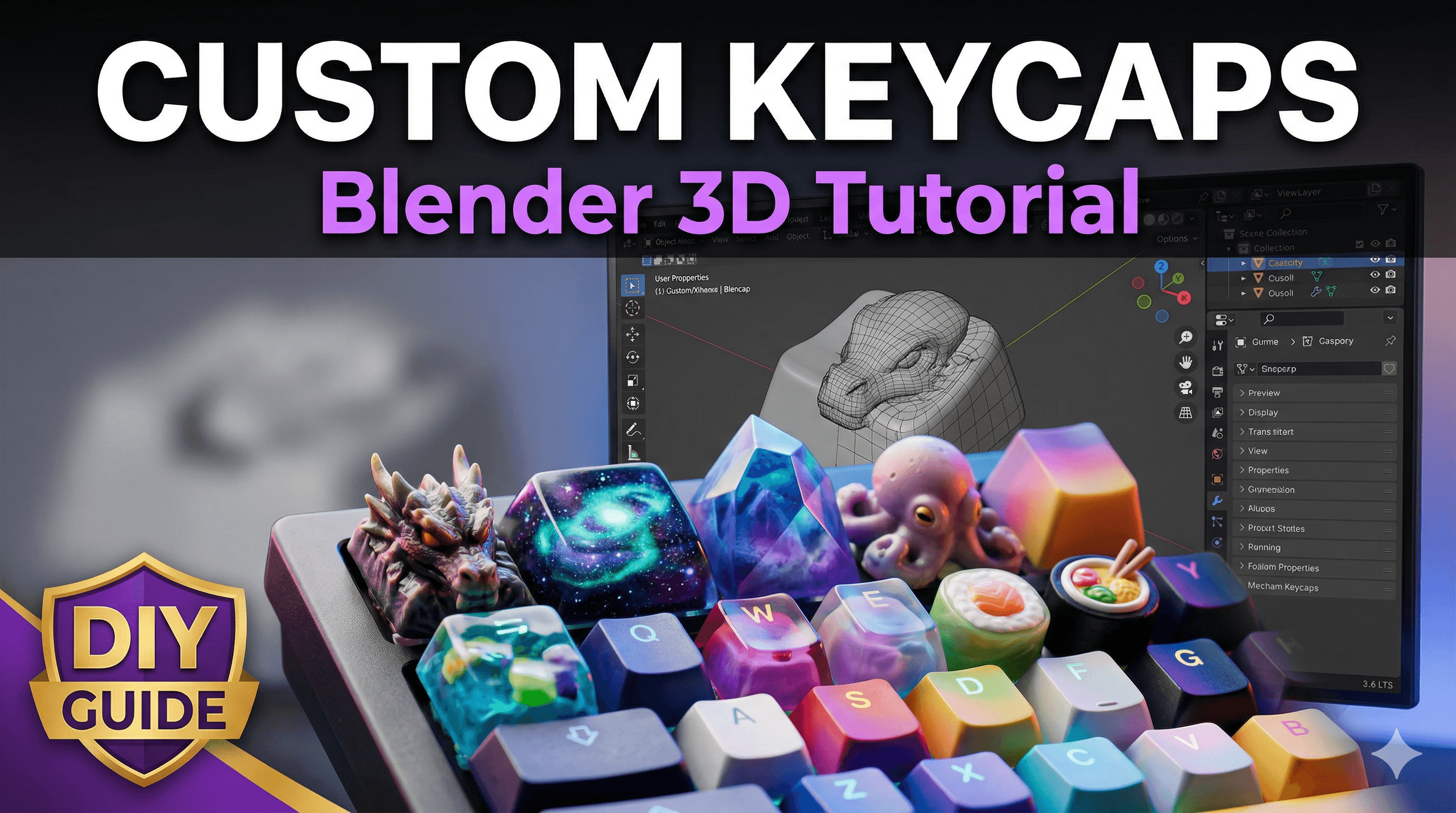
Unleash Your Inner Keyboard Artisan: 3D Print Custom Keycaps in Blender (The Desi Way!)
You know that feeling, right? You’ve got your dream mechanical keyboard, clacking away, but there’s just *something* missing. That one keycap that screams "YOU." Maybe it's an Escape key with a tiny Ganesha, a Super key with your favourite game logo, or just a custom colour combo that the big brands don't offer. I’ve been there, staring at gorgeous, imported artisan keycaps online, only to blanch at the price tag – sometimes ₹3,000 to ₹5,000 for a single keycap! Honestly, who has that kind of budget for a tiny piece of plastic? That's exactly why, a few years back, fuelled by my passion for 3D printing and a deep love for mechanical keyboards (and, let's be real, a healthy dose of miserliness), I decided to crack the code on making my own. And guess what? It’s not just possible; it’s incredibly rewarding, affordable, and totally doable right here in India with your trusty 3D printer and a free software called Blender.
Here at ArtOpia Collections, we’re all about bringing your digital dreams into the physical world, and custom keycaps are one of my absolute favourite things to create. It's not just about functionality; it's about personal expression, about making your workspace truly yours. And today, I’m going to walk you through the entire process, from opening Blender to popping that perfectly printed keycap onto your switch. Trust me, if I can do it, you definitely can too.
Why Go Custom? And Why 3D Printing?
Okay, so why bother with custom keycaps? Beyond the obvious "because it looks cool," it's about ownership. It's about having something unique, something that reflects your personality or a specific inside joke. Think about it – your keyboard is a central part of your daily interaction, whether you’re coding, gaming, or just typing up emails. Why settle for generic? And the beauty of 3D printing, especially FDM printing, is its accessibility. You don’t need a fancy resin printer (though they are amazing for tiny details, FDM can absolutely hold its own here). With a good FDM printer like an Ender 3 Pro (which you can snag for around ₹15,000-₹18,000 these days, sometimes even less during sales!) or an Anycubic Kobra, and some decent PLA filament (a 1kg roll costs about ₹800-₹1200), you’re set. You can prototype, iterate, and print as many keycaps as you want for literal pennies per piece. Compare that to buying designer ones!
The Essentials: What You’ll Need to Get Started
Before we dive into the digital realm, let's make sure you've got your physical toolkit ready. Don't worry, it's pretty basic:
- A 3D Printer: As I mentioned, an FDM printer is perfect. I mostly use my trusty Ender 3 V2 for these, but even a Creality K1 or an Anycubic Kobra 2 Neo would do wonders.
- Filament: PLA is your best friend for prototyping due to its ease of use and good detail retention. For something a bit more durable or heat-resistant (if your setup gets really hot), PETG or even ABS can work, but they are a bit trickier to print. I usually stick with eSUN or Overture PLA for keycaps – great quality and readily available on Amazon India.
- Blender: This is our sculpting and modeling powerhouse. It's free, open-source, and incredibly powerful. Download it from blender.org.
- Slicer Software: PrusaSlicer or Cura are my go-to choices. Both are free and excellent.
- Digital Calipers (Optional but Recommended): For precise measurements. You can get a decent one for ₹500-₹1000.
- Basic Tools: Snippers (to remove supports), maybe a small file or sandpaper for post-processing.
- A Mechanical Keyboard Switch: You’ll need this to test the fit. A spare switch is perfect.
Blender Time! Crafting Your Keycap Masterpiece
Alright, fire up Blender! This is where the magic really begins. Don’t be intimidated if you’re new to Blender; we’ll keep it simple.
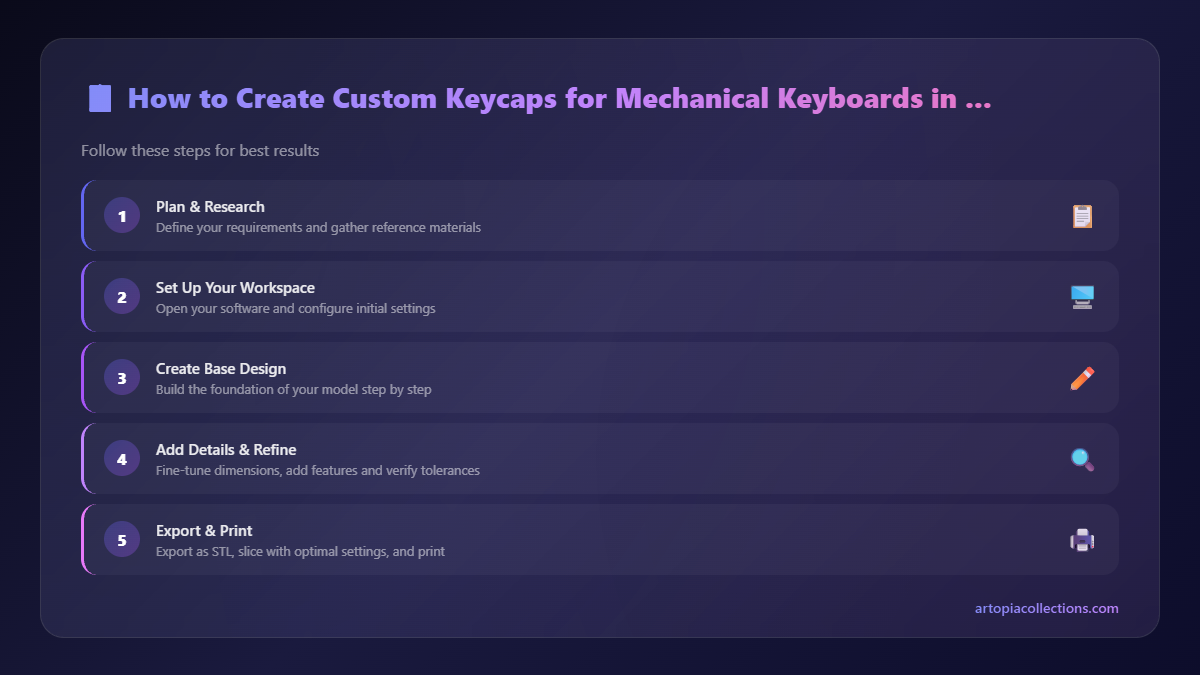
Step 1: Get Your Base Profile Right
This is the most critical step. A keycap isn’t just a block; it has a specific profile (like Cherry, OEM, SA, DSA) and, crucially, a stem that fits perfectly onto a MX-style switch. Trying to model this from scratch can be a nightmare. Here’s the deal: you can either:
- Find a Pre-made Base: This is what I recommend for beginners. Search online for "Cherry MX keycap blank STL" or "keycap base Blender file." Many talented designers share these for free on sites like Thingiverse or Cults3D. Download one that matches the profile you want (Cherry is most common).
- Measure and Model (Advanced): If you’re feeling brave, take an existing keycap, measure its dimensions (width, height, angle, and especially the stem dimensions) with your calipers, and model it. But trust me, option 1 is much easier.
Once you have your base model, import it into Blender (File > Import > STL). Make sure its scale is correct (usually, 1 unit in Blender equals 1mm). If it looks tiny, scale it up until it’s roughly 18x18x10mm (a standard 1u keycap).
Step 2: Designing Your Custom Top
Now for the fun part! This is where you get creative. The trick is to design *on top* of your base profile.
- Separate Your Base: If your imported model is a single mesh, you might want to create a duplicate (Shift+D) and separate the top part (the actual keycap surface) from the stem. Or, just start with a simple cube (Shift+A > Mesh > Cube) and scale it to roughly the size of the keycap's top surface.
- Model Your Idea:
- Simple Emboss/Deboss: Want a logo or text? Create your text (Shift+A > Text), extrude it, and position it above the keycap. Use Boolean operations (Modifier Properties > Add Modifier > Boolean) to either union it (emboss) or difference it (deboss) from the keycap body. This is great for subtle designs.
- Sculpting: For organic shapes (like a mini Totoro, a mountain, or a wavy pattern), switch to Sculpt Mode (top left dropdown). Use brushes like "Draw," "Grab," "Smooth," and "Inflate" to create your desired shape. Remember to add a Multiresolution modifier before sculpting for better detail without messing up your base mesh.
- Adding Objects: Import or model small objects (a tiny coffee cup, a sword, a mini character) and position them on top of your keycap. Make sure they are merged with the keycap body using a Boolean Union, so they print as one solid piece.
- Refine and Smooth: Use the "Smooth" shading option (right-click > Shade Smooth) for a cleaner look. Add a "Subdivision Surface" modifier for smoother curves if needed, but be careful as this adds a lot of polygons and can make printing fine details harder.
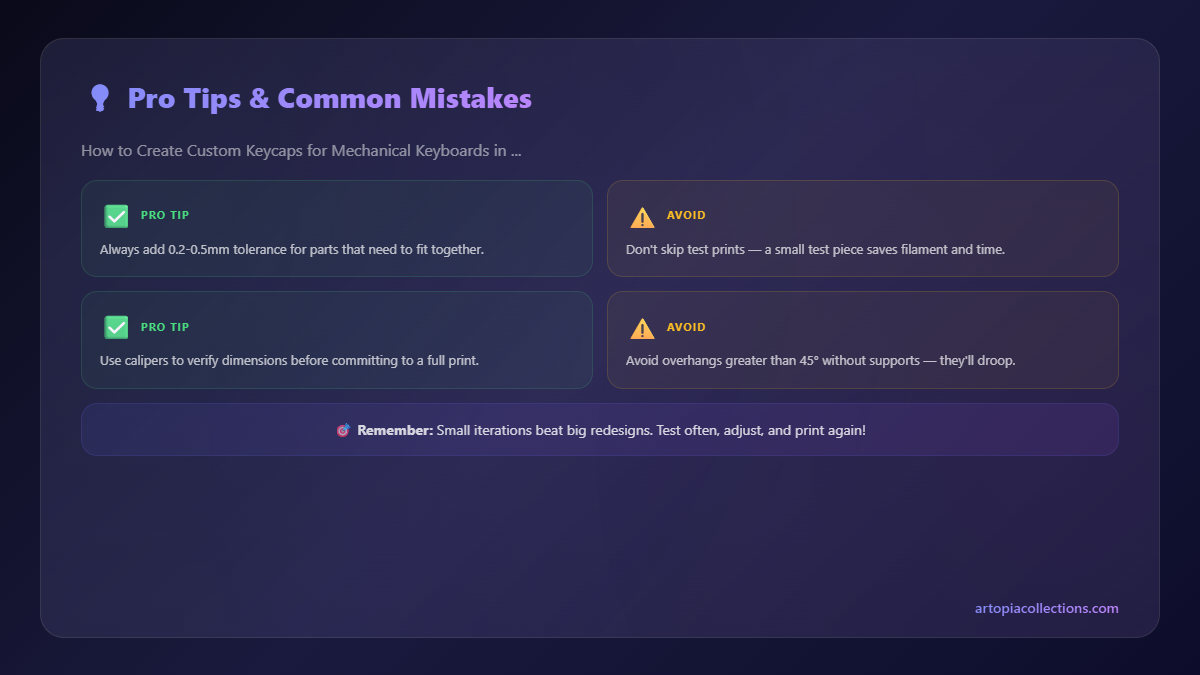
- Check for Overhangs: Remember, you’re 3D printing. Steep overhangs will need supports. Try to design with printing limitations in mind. Angles less than 45 degrees usually print fine without supports.
Self-correction moment: I've made the mistake of trying to sculpt super intricate details directly onto a low-poly base before. It just turns into a lumpy mess. Always add a Multiresolution modifier or subdivide your mesh a few times before getting into heavy sculpting, otherwise, you'll be tearing your hair out!
Step 3: Ensuring the Perfect Fit – The Stem
This is crucial. The stem needs to fit snugly onto your MX switch without being too tight (which can break the switch) or too loose (which makes the keycap fall off). The standard cross shape of an MX stem is about 4.1mm x 4.1mm, with tapered edges. If you're using a pre-made base, this should be taken care of, but always double-check in Blender.
- Tolerance is Key: 3D printers aren't perfectly precise. I usually aim for a slightly larger hole on my keycap stem – maybe 4.2mm x 4.2mm for the main cross, and then taper it to 4.1mm x 4.1mm at the very top. This gives a tiny bit of tolerance.
- Chamfer Edges: Add a small chamfer (Ctrl+B in Edit Mode) to the edges of the cross stem’s hole. This helps it slide onto the switch smoothly without scraping.
- The "Grab" Test: Once you've modeled it, make sure the stem piece is fully integrated with your custom top. Use a Boolean Union to merge everything into one single, manifold mesh.
Step 4: Exporting Your Masterpiece
Once you're happy with your design and everything is a single, manifold mesh (no holes, no disconnected parts), it's time to export. Go to File > Export > STL (.stl). Make sure "Selection Only" is checked if you have other objects in your scene. Save it with a descriptive name, like "MyCustomGaneshaKeycap.stl".
Slicer Settings: From Digital to Tangible
Now open your chosen slicer (PrusaSlicer or Cura). Load your STL file.
- Orientation: Print your keycap upside down, with the top surface touching the build plate. This gives you the cleanest possible top surface because the first layer adheres perfectly. The stem will be facing upwards.
- Layer Height: This is critical for detail. For keycaps, I personally wouldn’t go above 0.16mm. My sweet spot is usually 0.12mm or even 0.08mm for really intricate designs. Finer layers mean more detail, but longer print times.
- Infill: 100% infill. Seriously. Keycaps are small and need to be sturdy enough to withstand repeated presses. Anything less and they’ll feel hollow or break easily.
- Supports: If printing upside down (which you should), you'll only need supports for the inside of the stem and any severe overhangs in your custom design. In PrusaSlicer, enable "Generate Support Material" and set "Overhang threshold" to around 60-70 degrees. Use "Tree Supports" in Cura if available, they are usually easier to remove. I often just use "Normal" supports, but tinker with support Z distance (0.12-0.16mm) for easier removal.
- Brim/Raft: For a small part like a keycap, a brim (3-5mm) is highly recommended. It helps with bed adhesion and prevents warping, especially if you’re using ABS or PETG. A raft isn't usually necessary and adds more post-processing work.
- Material Specifics (PLA):
- Nozzle Temp: 200-210°C (depending on filament brand)
- Bed Temp: 60°C
- Print Speed: 40-50mm/s for outer walls, maybe 60-80mm/s for infill.
Slice it, check the preview to make sure supports look good and no weird gaps or artifacts exist, then save your G-code and send it to your printer! Printing one keycap usually takes anywhere from 45 minutes to 2 hours, depending on its complexity and your layer height.
Post-Processing: Bringing It to Life
Once your keycap is off the print bed, gently remove any supports using your snippers. Be careful not to damage the keycap itself. For a really smooth finish, you can lightly sand any rough spots with fine-grit sandpaper (220-400 grit), then progressively finer grits (up to 1000 or 2000). You can also hit it with a bit of primer and paint if you want to add colours or a metallic finish. Just remember, thin coats are your friend!
Troubleshooting Common Issues
- Doesn't Fit the Switch: Too tight? Your stem hole is too small. Too loose? Your stem hole is too big. Adjust your Blender model by 0.1-0.2mm and reprint. Sometimes, just adjusting print tolerances in your slicer (horizontal expansion) can help.
- Breaks Easily: You probably didn't use 100% infill, or your filament isn't strong enough. Make sure walls are thick enough too.
- Details Not Coming Out: Increase your layer height (e.g., from 0.12mm to 0.08mm), slow down your print speed, and check your nozzle diameter (a 0.4mm nozzle is standard, but a 0.2mm nozzle can capture insane detail, though prints take ages!).
- Warping: Increase bed temperature, use a brim, and ensure your print surface is clean.
The ArtOpia Collection Connection
Honestly, the first time you pop a custom keycap you designed and printed yourself onto your keyboard, it’s an incredible feeling. It’s like, "Yeah, I made this. This is mine." If you're keen to explore more custom 3D printed items, or if the idea of designing your own keycap feels a bit daunting right now, you can always check out some of the unique prints and custom services we offer right here at ArtOpia Collections. We love bringing ideas to life, whether it's a personalized keycap, a custom figurine, or a functional print for your home.
Go Forth and Create!
So, there you have it. Creating custom 3D printed keycaps is a fantastic way to dive deeper into both 3D printing and the mechanical keyboard hobby. It's a journey of learning, experimentation, and ultimately, incredible satisfaction. Don't be afraid to fail – my first few keycaps were, let's just say, "experimental." But with each attempt, you learn something new, refine your skills, and get closer to that perfect, unique keycap. Pick up some good filament like this Overture Matte Black PLA on Amazon, fire up Blender, and start designing. I can't wait to see what you come up with!


