Hey Future Print Master! Cracking the Code: Your Complete Guide to STL Files
Dude, remember that rush when you first unboxed your 3D printer? That sweet smell of fresh plastic, the whir of the stepper motors⦠itâÂÂs magic, right? But then, youâÂÂre staring at your computer screen, youâÂÂve found this awesome model online, and it's an STL file. What in the world is an STL? How do you even use it? Don't worry, my friend, you're not alone. IâÂÂve been there, pulling my hair out trying to figure out why my printer wasn't "getting" the cool little Buddha I wanted to print. The thing is, the STL file is basically the heart and soul of your 3D printing journey. It's not just a file; itâÂÂs the blueprint, the recipe, the *idea* that your printer transforms into reality. And today, we're gonna demystify it all, from downloading to dialing in those perfect prints. So, grab a cutting chai, settle in, and let's get you fluent in STL!
What in the FDM World is an STL File, Anyway?
Alr
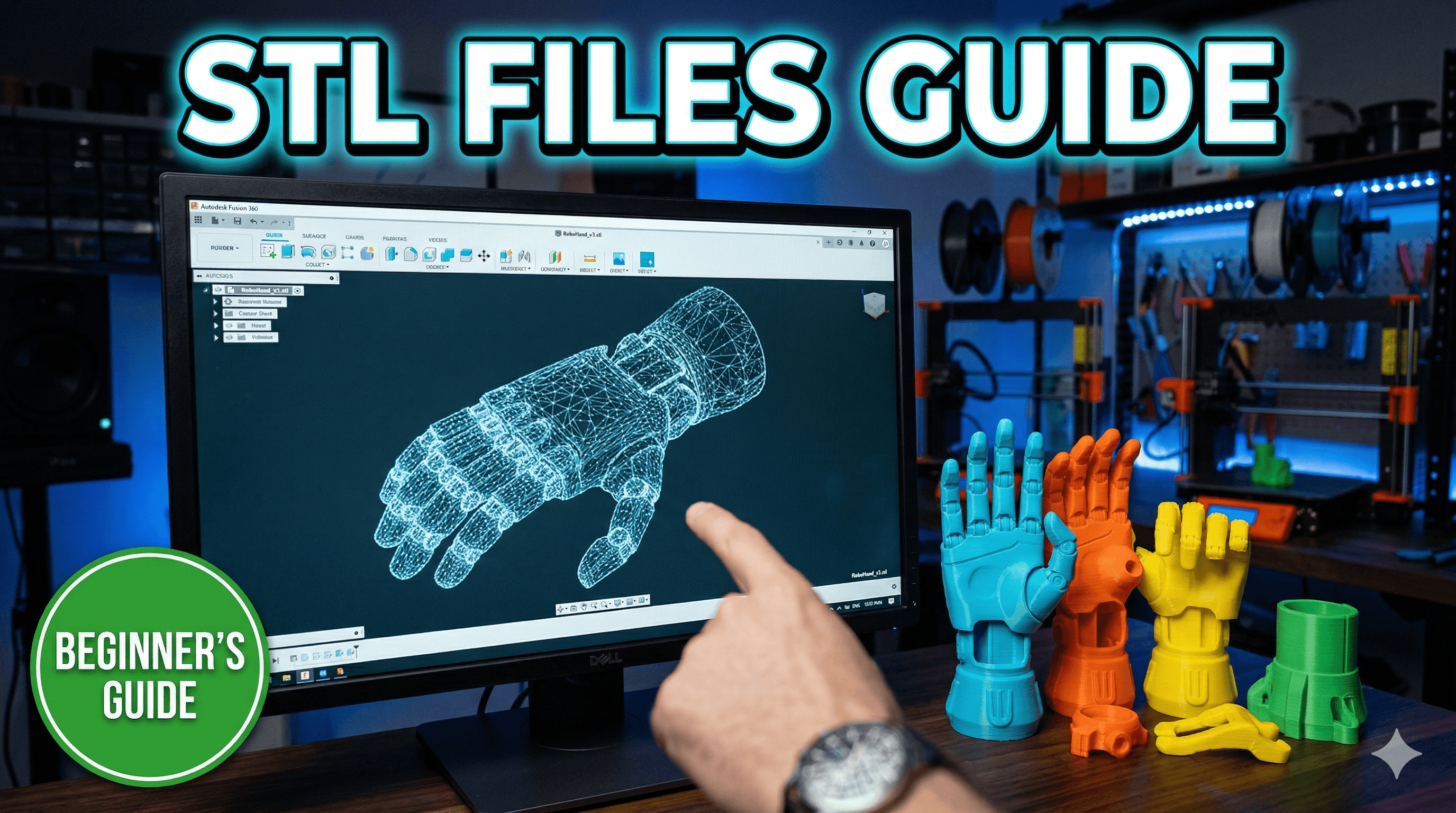
ight, let's get down to brass tacks. An STL file, which stands for "StereoLithography" (fancy, I know, but you don't really need to remember that part), is the most common file format for 3D printing. Think of it like a universal language for 3D models. When you see a cool model on Thingiverse or MyMiniFactory, it's almost certainly an STL.
Basically, an STL file doesn't store information about colour or texture (that's for other formats like OBJ or 3MF, which we won't dive into today). Instead, it describes the *surface geometry* of a 3D object using a mesh of tiny triangles. Imagine drawing a complicated sculpture by only using thousands of tiny, flat triangles. The more triangles, the smoother and more detailed the object appears. Less triangles? Well, then you might see those facets, that "low poly" look, especially on curved surfaces. It's a pretty elegant solution, honestly, for telling a machine exactly where the surface of an object lies in 3D space.
And that's why it's so fundamental to us. Your 3D printer doesn't understand "print a cat." It understands "move the nozzle here, extrude plastic, move there, extrude plastic." The STL file is the crucial step between your idea of a cat and the printer's execution of that idea.
Where Do These Magical STL Files Come From?
Okay, so you know what an STL is. But where do you get them? This is where the real fun begins, because there's a whole universe of 3D models out there waiting for you.
*
Online Repositories: This is probably where most of us start. Websites like Thingiverse, Printables.com, MyMiniFactory, and Cults3D are treasure troves of free (and some paid) STL files. You can find anything from phone stands and miniature figurines to functional prototypes and cosplay props. I personally spend way too much time browsing these sites, looking for the next cool thing for my shop, ArtOpiA Collections, or just something fun to print for myself.
*
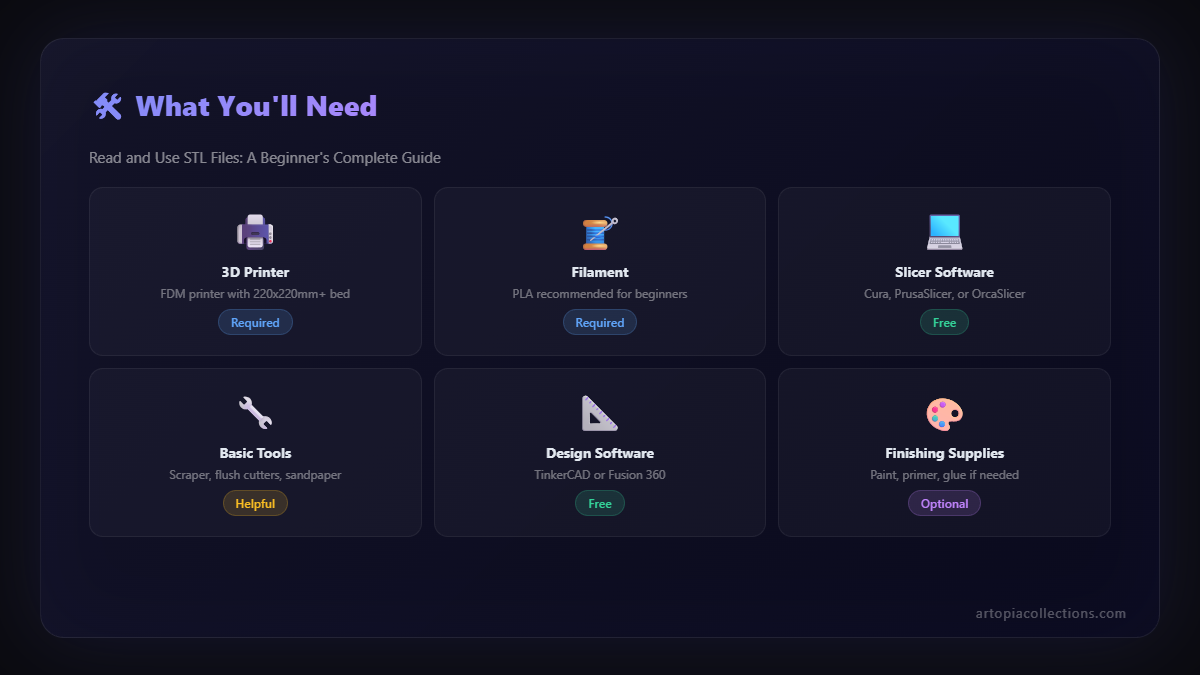
Design Your Own: Feeling creative? You can design your own 3D models using CAD (Computer-Aided Design) software. For beginners, Tinkercad is an absolute gem â itâÂÂs free, browser-based, and super intuitive. For more advanced stuff, thereâÂÂs Fusion 360 (free for hobbyists and startups), Blender (open source, great for organic models), or SolidWorks (professional, but expensive). I started with Tinkercad, and honestly, you can make some seriously cool stuff there before needing to jump into the big guns.
*
Scanning: You can also 3D scan real-world objects and turn them into STLs! This is a bit more advanced and requires specialized (and often expensive) equipment, but it's super cool for replicating existing objects.
When you're downloading, pay attention to the licensing! Most models on free sites are under Creative Commons licenses. Some allow personal use only, others allow commercial use with attribution. If youâÂÂre planning to sell prints, like I do sometimes, always, *always* double-check the license. ItâÂÂs super important to respect the designerâÂÂs hard work.
Downloading and Keeping Your STL Universe Organized
So,
you've found the perfect model, maybe a cute little Ganesh idol or a functional desk organizer. You click "Download," and poof, an `.stl` file appears in your downloads folder. Great! Now what?
Here's a quick tip that will save you headaches later:
Organize your files! Trust me on this. My downloads folder used to be an absolute jungle, and finding that one specific model I printed six months ago was a nightmare. I use a simple folder structure:
3D_Prints_STLs/
âÂÂâÂÂâ Functional/
â âÂÂâÂÂâ Home_Improvement/
â âÂÂâÂÂâ Gadget_Accessories/
âÂÂâÂÂâ Artistic/
â âÂÂâÂÂâ Miniatures/
â âÂÂâÂÂâ Statues/
âÂÂâÂÂâ Client_Projects/
âÂÂâÂÂâ My_Designs/
It's not perfect, but it works for me. And when you download, rename the file immediately if the original name is "model_part_v3_final_final_really_final.stl" to something descriptive, like "Ganesh_Small_Clean.stl." It'll save you so much time later, especially if you're like me and juggle multiple client projects from ArtOpiA Collections.
Peeking Inside: Viewing and Prepping Your STL
Before you even think about hitting "print," you need to view your STL and get it ready. This is where your computer acts as the middleman between the abstract STL and the concrete plastic.
1.
Windows 3D Viewer (or Mac Equivalent): If youâÂÂre on Windows, just double-clicking an STL will often open it in the built-in 3D Viewer. It's basic, but it lets you rotate, zoom, and just confirm itâÂÂs the model you thought you downloaded. Good for a quick check.
2.
Online Viewers: There are some handy online STL viewers if you donâÂÂt want to install anything, or if you're on a different OS. Just search for "online STL viewer."
3.
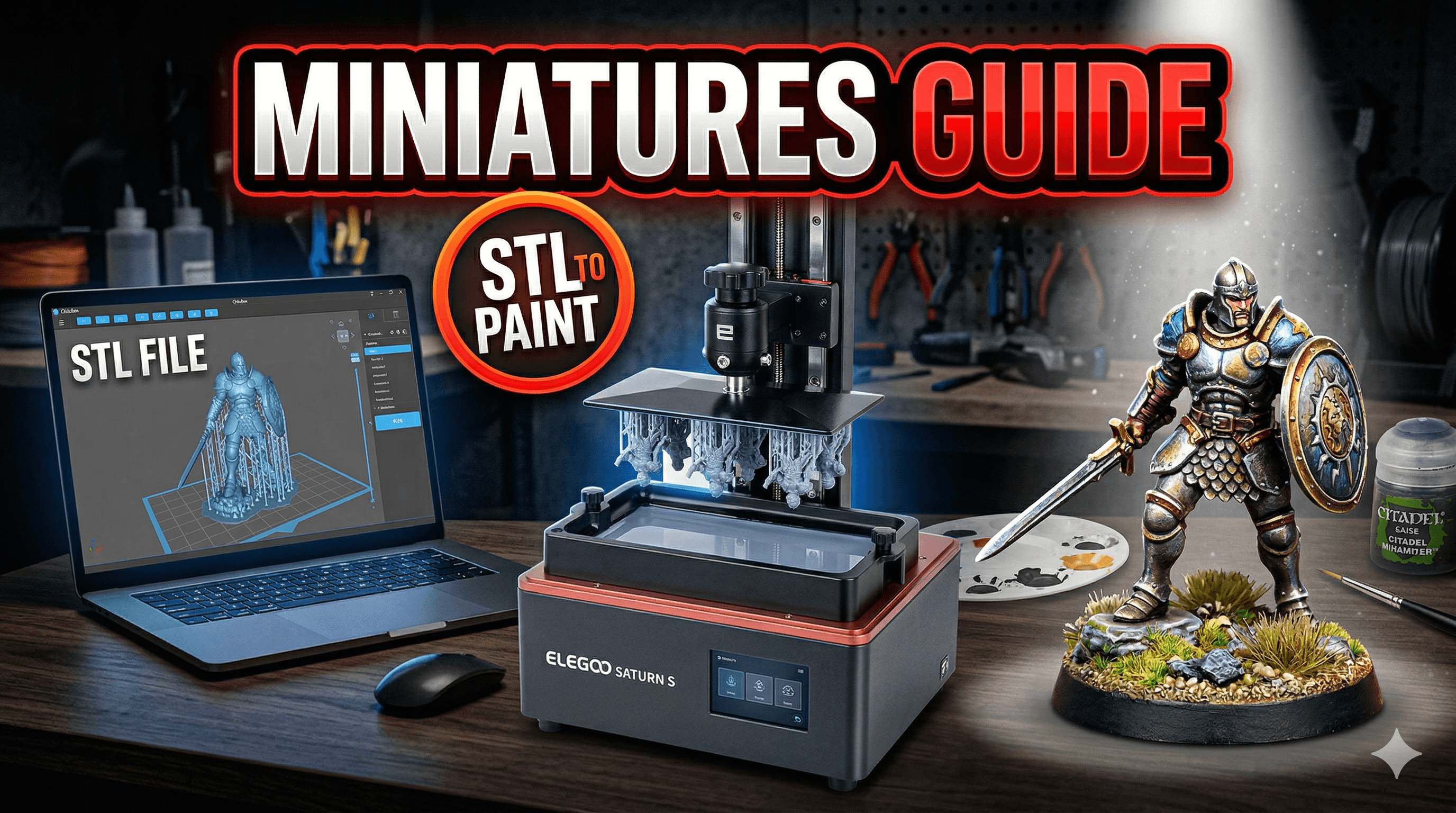
Your Slicer Software: This is where the real magic happens for prepping. Programs like Ultimaker Cura, PrusaSlicer, or Simplify3D are your best friends here. You drag your STL into the slicer, and BAM! You see your model on a virtual print bed. You can rotate it, scale it (careful with scaling!), and arrange multiple models. This is super important because how you orient your model can dramatically affect print quality and the need for supports. In my experience, standing models upright often gives cleaner details on the front, but might require more supports. It's a delicate balance!
The Slicer: Where STL Becomes G-Code (And Your Printer Understands)
Okay, this is arguably the most critical step after finding your STL. Your 3D printer, whether itâÂÂs a trusty
Creality Ender 3 (a workhorse, I tell you!) or a speedy
Anycubic Kobra 2, doesnâÂÂt understand STL files directly. It speaks G-code. Think of G-code as a super detailed instruction manual for your printer: "Move nozzle to X,Y,Z. Extrude this much plastic. Heat bed to this temp. Move up one layer." Thousands, sometimes millions, of these lines of code tell your printer exactly what to do.
And the software that translates your STL into G-code? That's your
slicer. My personal go-to is Ultimaker Cura. PrusaSlicer is also fantastic, especially if you have a Prusa printer or a good clone.
Here's a peek at what you'll be doing in your slicer:
*
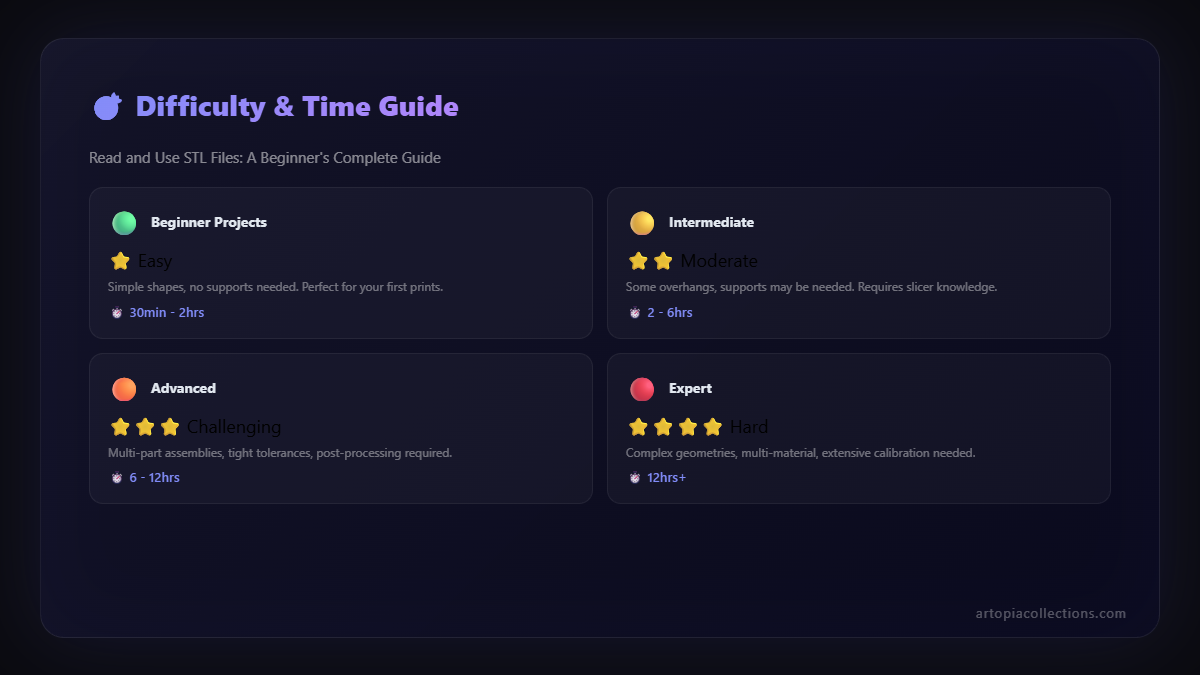
Layer Height: This is how thick each layer of plastic is. Thinner layers (e.g., 0.12mm or 0.16mm) give you finer detail and smoother surfaces but take way longer to print. Thicker layers (e.g., 0.2mm or 0.28mm) are faster but might show visible layer lines. For fine miniatures I print for ArtOpiA Collections, I often go for 0.12mm. For functional prototypes, 0.2mm is usually fine.
*
Infill: This determines how dense the inside of your print is. A higher infill percentage means a stronger, heavier print, but it uses more filament and takes longer. For most decorative items, 10-20% infill is perfectly adequate. For functional parts that need to withstand stress, I might go 50% or even higher. It really depends on the application.
*
Supports: Does your model have parts that overhang in mid-air? Like an outstretched arm on a figurine, or the chin of a character? Gravity isn't your friend here. Supports are temporary structures printed by your machine to hold up those overhanging parts, and you remove them after printing. Getting supports right is an art â too many, and cleanup is a nightmare; too few, and your print fails.
*
Print Speed: Faster isn't always better. While you might be tempted to crank it up to finish a print quickly, it can often lead to reduced print quality, ghosting, or layer shifting. For most of my prints on my
Ender 3 V2, I stick to a moderate speed, usually around 50-60mm/s.
*
Temperatures: Hotend (nozzle) and print bed temperatures are crucial and depend entirely on your filament type. PLA, for example, usually likes 195-215ðC for the nozzle and 50-60ðC for the bed. ABS needs much higher temps. Always check the filament manufacturer's recommendations. I mainly use PLA from brands like eSUN, Overture, and some really good local Indian brands, which usually retail for about â¹1500-â¹2000 per 1kg roll. You can find some great options here:
Browse PLA Filament on Amazon.in.
Once youâÂÂve tweaked all these settings (and believe me, there are *many* more advanced ones), you hit "Slice!" The slicer does its calculations, and then you "Export G-code" to an SD card or directly to your printer if you have OctoPrint or similar setup. Pop that SD card into your printer, hit print, and watch the magic unfold!
Common STL File Woes and How to Tackle Them
Not all STL files are created equal, sadly. Sometimes you download what looks like a perfect model, but your slicer throws a fit, or the print just looks⦠weird. Here are a few common issues:
*
Non-Manifold Edges / Holes in the Mesh: This means the 3D model isn't "watertight." Imagine a balloon with a tiny hole â it can't hold air. Similarly, if your STL has gaps or edges that don't connect properly, the slicer gets confused about what's inside and what's outside the model. This often leads to incomplete layers or strange artifacts.
*
Fix: Most slicers (like Cura) have an option to "Fix non-manifold issues" or "Automatically repair mesh." This works surprisingly well for minor issues. For more complex problems, you might need dedicated software like Meshmixer (free!) or Windows 3D Builder to repair the model.
*
Incorrect Scale: You load a model, and it's either tiny as a grain of rice or absolutely massive, larger than your print bed.
*
Fix: This is usually an easy fix within your slicer. Just select the model and adjust the scale percentage until it's the size you want. Always make sure the "Uniform Scaling" option is checked so you don't stretch your model weirdly.
*
Model Orientation: Sometimes a model is downloaded lying on its side, or upside down.
*
Fix: Again, your slicer is your friend! Use the rotate tools to place the model flat on the build plate. As I mentioned, proper orientation can drastically reduce the need for supports and improve print quality.
In my early days, I wasted so much filament on faulty STLs. Now, if I find a model is giving me consistent issues, I often just move on and look for a different one. Life's too short for bad STLs, especially when a 1kg roll of filament costs â¹1500!
Beyond the Hobby: Using STL Files in Your Business (Like Mine!)
Once you get a handle on using STLs for your personal projects, you'll quickly realize the potential for turning this hobby into something more. For me, thatâÂÂs ArtOpiA Collections. HereâÂÂs how STLs are central to a small 3D printing business:
*
Custom Prototypes: Clients often come to me with an idea, or even just a rough sketch. I can design a model in CAD, export it as an STL, print a prototype, and get feedback quickly. This iteration process is incredibly efficient and cost-effective compared to traditional manufacturing methods.
*
On-Demand Manufacturing: Let's say a client needs a custom jig for their workshop, or a specific replacement part that's no longer available. I can source or design the STL, print it, and deliver. This niche market is growing like crazy in India.
*
Selling Printed Goods: This is a big one for ArtOpiA. I find popular, well-designed STLs (always checking licensing for commercial use!), or design my own, and print them to sell. Think decorative items, functional prints, miniature terrain, or even custom awards. You can check out some of the stuff we offer right here:
ArtOpiA Collections Products.
*
Education and Workshops: I also sometimes run small workshops for beginners, teaching them how to get started. Understanding STLs is always the first major hurdle we overcome.
It's amazing how a simple file format can open up so many avenues. The initial investment in a decent printer, maybe â¹20,000 to â¹30,000 for something like a
Creality Ender 3 or an
Anycubic Kobra 2, plus filament and some basic tools, can truly launch a small venture. And speaking of tools, a good set of basic 3D printing tools can make a world of difference for print removal and cleanup. You can find essential tool kits for around â¹500-â¹1000. Here's a general search link if you're looking for some:
Check out 3D printing tool kits on Amazon.in.
A Few Last Words from Your Friendly Neighborhood Printer
Look, diving into 3D printing can feel a bit overwhelming at first, with all the jargon and settings. But honestly, mastering STL files is like learning the alphabet of a new, incredibly fun language. Once you understand what they are, where to get them, and how to prepare them for your printer, a whole new world of creation opens up.
Don't be afraid to experiment! Print something silly, print something functional, print something beautiful. Each print, whether it's a success or a failed "spaghetti monster," teaches you something new. Play with those slicer settings, try different filaments, and most importantly, have fun with it. This community is awesome, and there's always someone willing to help out.
So go forth, download those STLs, and bring your wildest 3D dreams to life! Happy printing, my friend!