TinkerCAD vs Fusion 360 vs Blender: Which CAD Tool Should You Learn First?
Deciding between TinkerCAD, Fusion 360, and Blender for your first 3D modeling experience can be tough. This guide helps you compare their features, learning curves, and best uses to choose the perfect CAD tool to begin your journey.
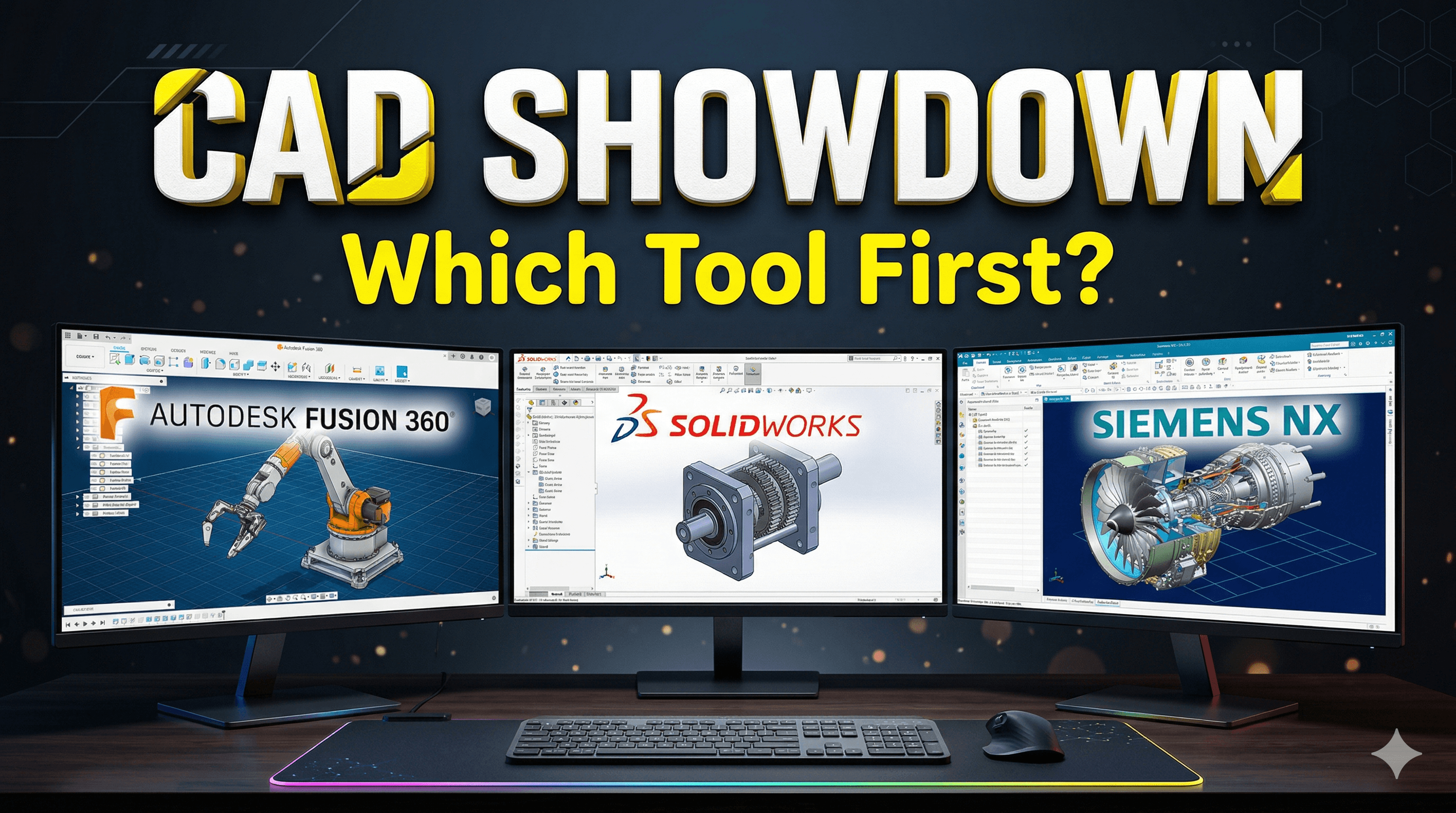
So, you’ve finally done it, eh? You’ve either bought your first 3D printer – maybe that shiny new Creality Ender 3 S1 or an Anycubic Kobra 2 – or you’re seriously thinking about diving headfirst into this amazing world of making. And now you’re staring at your screen, totally overwhelmed, because everyone keeps talking about TinkerCAD, Fusion 360, Blender, SketchUp, FreeCAD, SolidWorks, and a dozen other names. You’re probably thinking, "Good Lord, where do I even begin? Which one do I actually *need* to learn first to make my dreams of custom phone stands or superhero busts come true?"
Trust me, I’ve been there. My name is Vidyut, and I run ArtoPia Collections, my small 3D printing business right here in India. When I first got into this, oh, maybe five or six years ago, it was the Wild West. Information was scattered, and the tools felt like they were designed by aliens for other aliens. But over the years, I’ve pretty much used them all, and I’ve seen what works, what doesn't, and what makes people pull their hair out. So, let’s cut through the noise, shall we? I’m going to break down the three big players that most beginners stumble upon, and help you figure out which one is YOUR starting point: TinkerCAD, Fusion 360, and Blender.
TinkerCAD: The Friendly Gateway Drug to 3D Design
Alright, let’s kick things off with TinkerCAD. Honestly, if you're an absolute beginner, and I mean *absolute* beginner who’s never touched 3D software before, TinkerCAD is your best friend. It’s like the LEGO of 3D design, but on your computer. It’s entirely browser-based, meaning you don't have to download anything heavy, and it’s completely, gloriously free. Just open a tab, log in with your Google account, and you’re off to the races.
The whole philosophy behind TinkerCAD is "constructive solid geometry." Basically, you drag and drop simple shapes – cubes, spheres, cylinders, cones – onto a workplane. Then you can stretch them, shrink them, rotate them, and combine them. You can also turn a solid shape into a "hole," and when you group it with another solid, that hole will cut out a piece from the solid. It’s incredibly intuitive. You want a box with a round hole in it? Drag a box, drag a cylinder, turn the cylinder into a hole, place it over the box, group them. Done. It’s that simple.
In my experience, TinkerCAD is brilliant for quick fixes, simple functional prints, or if you’re trying to teach kids (or adults who think they’re bad at computers) the basics of 3D thinking. I still use it sometimes when I need to whip up a super simple bracket, a spacer, or a custom enclosure for some electronics. Like, say I need a quick mount for a security camera, or a custom stand for my soldering iron – something where precision isn't hyper-critical, but functionality is key. TinkerCAD lets you go from idea to STL file in minutes. And believe me, when you’re running a small business and juggling orders, sometimes those minutes matter a lot! It’s also fantastic for customizing existing models; you can import an STL, add some text, or chop off a part you don't need.
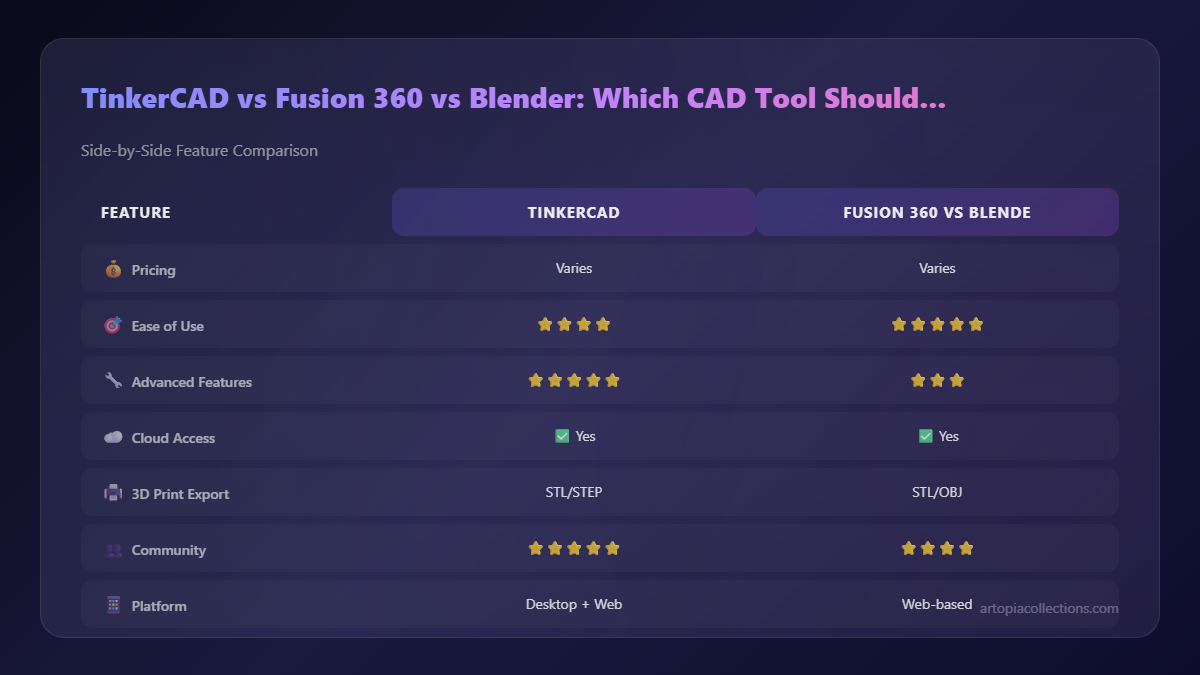
Now, what are its limits? Well, it's not going to let you design the next intricate miniature figurine with flowing hair and tiny details. Organic shapes are a pain, if not impossible. It's also not parametric, meaning if you change one dimension, other related dimensions won't automatically update. You have to manually adjust everything. For complex assemblies or super precise engineering parts, it falls short. But for its intended purpose – simple, fast, accessible 3D design – it’s unbeatable. So, if you're just dipping your toes in and want to understand how 3D objects are built, without any financial commitment or heavy software downloads, TinkerCAD is absolutely where you should start. There's no learning curve; it's more like a learning gentle slope.
Fusion 360: The Professional's Playground (for Hobbyists Too!)
Okay, once you’ve gotten comfortable with the idea of 3D modeling, maybe you’ve printed a few custom phone stands or a simple toy, and you’re thinking, "I want more. I want precision. I want to design mechanical parts that fit together perfectly!" That, my friend, is where Fusion 360 steps in. This is a beast of a program, developed by Autodesk, and it’s basically industry-standard CAD (Computer-Aided Design) software, but with a super generous twist: it's free for hobbyists and small startups (with under ₹8,00,000 annual revenue). That's a massive deal, considering professional CAD software can cost lakhs of rupees a year.
Fusion 360 is what’s called "parametric modeling." Instead of dragging and dropping basic shapes, you draw 2D sketches (like you would on paper, but digitally), and then you use those sketches to create 3D objects. You can extrude them, revolve them, sweep them, loft them, and then add features like fillets, chamfers, and holes. The magic here is that everything you do is based on dimensions and relationships. If you sketch a rectangle and define its width as 50mm, and then you later decide it needs to be 60mm, you just change that one number, and the entire model updates automatically. This is *crucial* for designing functional parts, enclosures, or anything that needs to fit together with other components.
For ArtoPia Collections, Fusion 360 is my daily driver. It's where I design most of my client projects, especially anything functional or mechanical. If a client asks for a custom jig for their workshop, a replacement part for a broken appliance, or an intricate assembly for a prototype, Fusion 360 is the tool I reach for. I’ve designed everything from custom drone frames to complex robot parts for college projects using this. The precision it offers is just unparalleled. And it’s not just for hard-edged mechanical stuff; you can do some really impressive organic modeling with its T-splines and sculpting tools too, though it's a different workflow than, say, Blender.
The learning curve for Fusion 360 is definitely steeper than TinkerCAD. You'll need to understand concepts like sketches, constraints, timelines, and components. But honestly, the community support is phenomenal, with tons of free tutorials on YouTube (check out Lars Christensen, Product Design Online, and Kevin Kennedy – lifesavers!). Plus, it's cross-platform (Windows/Mac) and leverages cloud capabilities for saving and sharing projects, which is super handy for collaboration or working from different machines. You'll also need a decent computer; it's not as resource-intensive as Blender for extreme scenes, but it's not a featherlight browser app either.
So, if your goal is to design functional prints, engineering prototypes, or anything that requires precision and the ability to easily modify dimensions down the line, Fusion 360 is your next logical step after TinkerCAD. The personal use license is truly a gift from the heavens for us hobbyists and small businesses. If you're serious about creating custom parts for your Creality Ender 3 V2 or other printers, this is the way.
Blender: The Artistic Powerhouse
Now, let’s talk about Blender. Ah, Blender! This one is a different beast altogether. While TinkerCAD is for simple shapes and Fusion 360 is for precise engineering, Blender is for pure, unadulterated artistic freedom. It's a full-fledged 3D creation suite – modeling, sculpting, animation, rendering, video editing, game creation, you name it. And just like TinkerCAD, it's completely free and open-source. The community around Blender is massive and incredibly vibrant, constantly pushing the boundaries of what's possible.
When people think of 3D printing and Blender, they usually think "sculpting." Blender has incredibly powerful sculpting tools that mimic real-world clay sculpting. You can push, pull, smooth, grab, and deform virtual clay to create highly organic, detailed models – think character figurines, intricate jewelry, cosplay props, or detailed miniatures. If you want to design a custom superhero bust, a fantastical creature, or a unique piece of abstract art, Blender is your weapon of choice. It excels where traditional CAD struggles with organic, flowing forms.
Here’s the thing about Blender though: it's not a CAD program. This is important to understand. While you *can* model with precision in Blender, it’s not its primary strength or workflow. Everything is based on vertices, edges, and faces (poly-modeling), not parametric sketches. Getting exact dimensions for mechanical parts can be a real headache compared to Fusion 360. If you need a bolt to fit perfectly into a hole, you'll be pulling your hair out trying to get the tolerances right in Blender, whereas in Fusion it's a few clicks and dimension changes. Also, the learning curve? Oh boy. It's a sheer cliff face. The interface is packed with features, and it can feel overwhelming at first. But once it clicks, it’s incredibly rewarding.
At ArtoPia Collections, I use Blender for all my artistic commissions. If a client wants a custom bobblehead, a unique miniature for their tabletop game, or a complex decorative piece (you can check out some of the stuff we make here!), Blender is my go-to. It lets me unleash my creativity in ways that other software simply can’t. Plus, it's brilliant for preparing models for printing – fixing manifold errors, hollowing out models to save on filament (which, by the way, can cost you anywhere from ₹1200 to ₹1800 for a good 1kg spool of PLA, so saving every gram helps!), and adding supports where needed.
So, if your passion lies in creating art, characters, creatures, or highly detailed, organic designs, and you're not afraid of a serious learning challenge, Blender is absolutely the tool you should master. You'll probably want a good quality PLA filament to bring your creations to life.
So, Which One Should YOU Learn First?
Look, there's no single "right" answer here. It genuinely depends on what you want to achieve with your 3D printer. But if you're asking me, Vidyut from ArtoPia Collections, here's my honest advice:
- Start with TinkerCAD. Seriously. Spend a week or two there. Build some simple boxes, make a custom keychain, design a basic phone stand. Understand the fundamentals of combining shapes, making holes, and exporting an STL. It's completely free, browser-based, and will give you a solid foundation without any frustration. Think of it as your 3D modeling kindergarten.
- Then, choose your path.
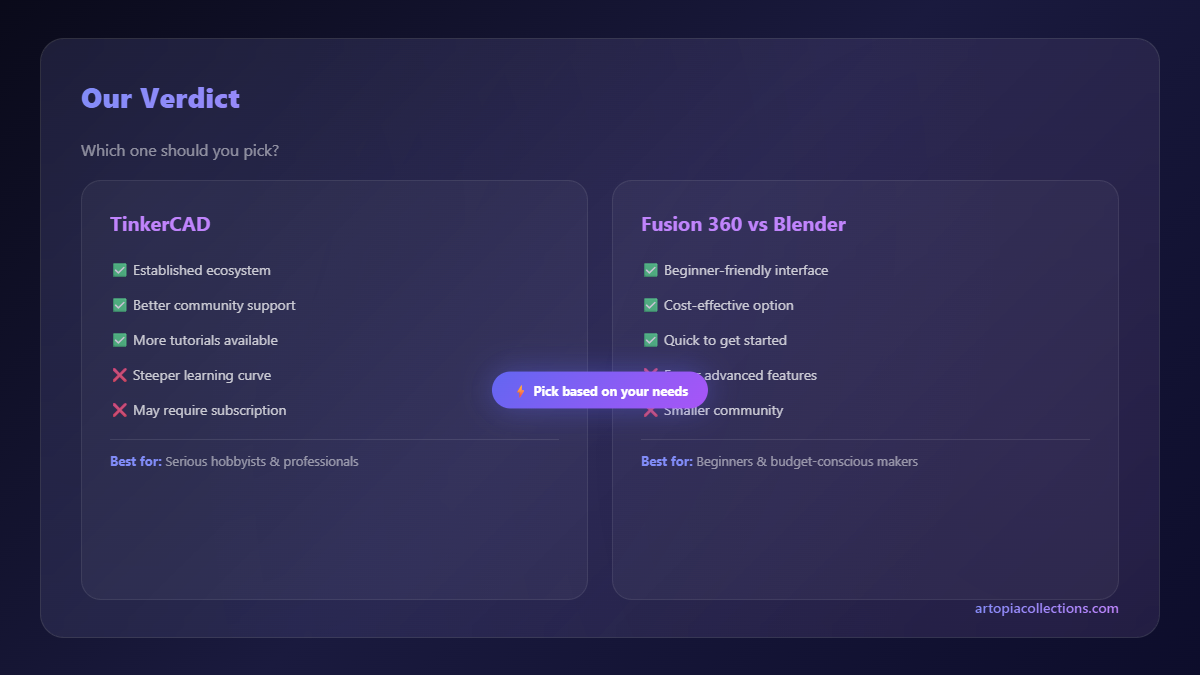
- If you're into functional parts, engineering, robotics, custom enclosures, or anything that needs to be precise and fit together: Move on to Fusion 360. It's a powerful tool that will empower you to design almost anything mechanical. The learning curve is there, but it's worth every bit of effort.
- If you're an artist, sculptor, gamer, or want to create highly detailed figurines, props, and organic models: Dive into Blender. Be prepared for a challenge, but the creative freedom it offers is unparalleled.
Honestly, I personally think every serious 3D printing enthusiast should eventually get comfortable with at least one CAD program (like Fusion 360) and one sculpting/artistic program (like Blender). They complement each other beautifully. I use TinkerCAD for super fast, simple stuff, Fusion 360 for my precise mechanical and functional designs, and Blender for all the intricate, artistic models.
The main thing is, don't let the choice paralyze you. The best tool is the one you actually use. Just pick one, watch some YouTube tutorials, experiment, fail, learn, and iterate. That's the whole spirit of 3D printing, isn't it? Go create something amazing!


