Using a 3D Scanner App on Your Phone: Best Free Options Tested
Looking to turn your phone into a 3D scanner without spending a dime? We've put the most popular free 3D scanner apps to the test, evaluating their accuracy, ease of use, and overall performance so you can pick the best one for your projects.

From Phone Pixels to Printed Reality: My Dive into Free 3D Scanner Apps!
Oh man, if you're anything like me, you've probably spent countless hours staring at a cool object, thinking, "Wouldn't it be epic if I could just... print that?" I mean, come on! The dream of snapping a pic with your phone and having it materialize on your print bed, perfectly scaled and ready for action, is something every 3D printing enthusiast fantasizes about. For years, proper 3D scanners were these elusive, expensive beasts, often costing more than my entire print farm setup combined. We're talking hundreds of thousands of rupees for decent ones, completely out of reach for a small business like mine, Artopia Collections, here in India. But then, the smartphone revolution truly kicked in, especially with advanced cameras and, more recently, LiDAR sensors on iPhones. And suddenly, the landscape changed. My friends, the game is officially on!
I've been running my little 3D printing business for a while now, churning out everything from custom prototypes for local artisans to unique decor pieces you can check out over at our products page. And believe me, the ability to quickly capture a physical object digitally would be a game-changer. Imagine a client brings in a broken, custom-made part for an old machine – something impossible to find spares for. Or a sculptor wants a smaller, scaled-down version of their clay model. Traditional CAD modeling takes ages, and precision is tough. That's where 3D scanning swoops in like a superhero. But, as I said, dedicated scanners? Nope, not for my budget. So, I embarked on a quest: could free 3D scanner apps on my phone actually deliver? I spent weeks, probably months, fiddling, scanning, failing, and occasionally succeeding. Here's the lowdown on what I found.
Managing Expectations: It's a Phone, Not a Sci-Fi Scanner
First things first, let's be super clear. Your phone, no matter how fancy, is not going to give you industrial-grade, sub-millimeter accurate scans ready for engineering-critical parts. If you're hoping to reverse-engineer a complex engine component with precise tolerances, you're gonna have a bad time. These apps are fantastic for organic shapes, artistic models, decor items, and rough prototypes. They’re excellent for getting a basic shape or texture, especially if you plan to clean it up in Blender or MeshMixer later. Think of it as a really good starting point, not the final destination for hyper-detailed work. I've seen some absolutely gorgeous scans online, but they often require meticulous setup, perfect lighting, and a truckload of patience. So, set your expectations right, and you won't be disappointed.
The Contenders: Free 3D Scanner Apps I Put Through the Wringer
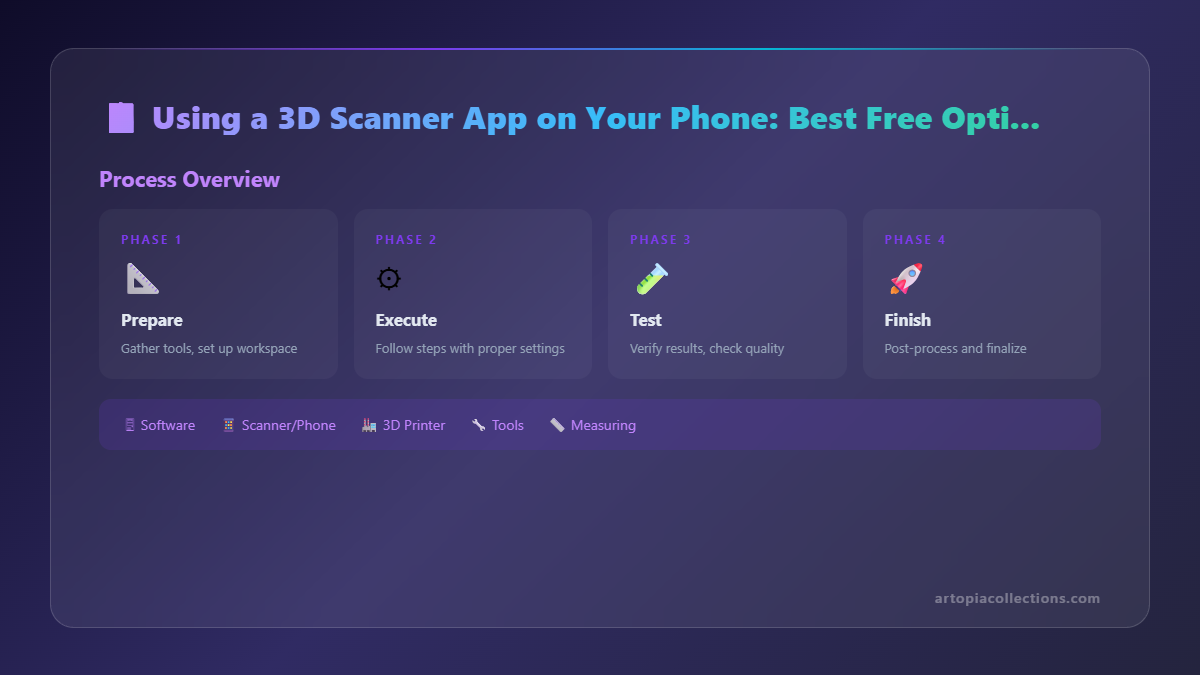 I focused on apps that offered a truly free tier, even if it meant limited exports or scan counts. Because, honestly, who wants to pay for something only to find out it's rubbish for their specific needs? I primarily used an iPhone 13 Pro Max (for its LiDAR sensor) and a Samsung Galaxy S21 for photogrammetry apps.
1. Polycam (iOS - LiDAR & Photogrammetry)
Okay, Polycam. This one gets a lot of hype, and for good reason. If you have an iPhone with a LiDAR sensor (iPhone 12 Pro/Max and newer, iPad Pro 2020 and newer), this app is probably the best entry point for decent quality, fast scans. The LiDAR mode is ridiculously quick. You literally just walk around an object, and it builds a mesh in real-time. It's almost magical.
- My Experience: I first tried scanning a small, intricate clay idol my grandmother had. Indoors, with decent ambient light. The LiDAR scan took maybe 30 seconds. The resulting mesh was surprisingly good for a quick capture. It struggled with reflective surfaces, dark objects, and very thin geometries (like the idol's small fingers were a bit blobby). But for its speed and ease of use, it's mind-blowing. The processing happens on your device, which is great for privacy and speed.
- Pros:
- Blazing fast LiDAR scans.
- Real-time mesh generation.
- Easy to use, intuitive interface.
- Also offers photogrammetry (using standard camera photos) for higher detail.
- Cons:
- Free tier limits exports to only 10 per month (or something like that, it changes often). You can view, but exporting an OBJ or STL is what we really need for printing, right?
- LiDAR struggles with reflective, transparent, or very dark surfaces.
- Doesn't capture color very accurately in LiDAR mode.
- The subscription for unlimited exports and higher resolution processing is steep, around ₹2,000-₹3,000 annually if I recall correctly, which for hobbyists, or even small businesses, can be a pinch.
- Best for: Quick captures of medium-sized, matte objects; getting a basic shape for prototyping; scanning rooms or large spaces. I used it to quickly scan a client's existing wooden carving to get a base model for a customized version. It worked wonders for that initial concept.
2. 3D Scanner App (iOS - LiDAR)
This is another strong contender for LiDAR-equipped iPhones. It's often compared to Polycam, and in many ways, it's quite similar in functionality and output quality for LiDAR scans. It feels a bit more utilitarian in its interface, less flashy than Polycam, but still very effective.
- My Experience: I put this one through its paces scanning some of our display pieces – a couple of geometric planters, a miniature Ganesha statue. The scanning process is identical to Polycam; you just move your phone around the object. I found its meshing to be slightly cleaner on some edges, but that could just be perception or specific object geometry. It had similar struggles with reflective surfaces.
- Pros:
- Excellent LiDAR scanning capabilities.
- Relatively fast processing.
- Often perceived as having slightly better mesh quality in some specific cases, though it's neck and neck with Polycam.
- Cons:
- Also has export limitations in the free version. You can only share low-res models or view them in-app without paying.
- Same LiDAR limitations regarding material types.
- The UI isn't as polished or user-friendly as Polycam, in my humble opinion.
- Best for: If you're looking for an alternative to Polycam for LiDAR scanning, especially if one works better for your specific phone or object. It's good to have options, right?
3. Kiri Engine (iOS & Android - Photogrammetry)
Now, this is where things get interesting for us Android users, or those without LiDAR. Kiri Engine uses photogrammetry, which basically means it stitches together dozens (or hundreds!) of photos of an object from different angles to create a 3D model. This technology isn't new, but Kiri Engine makes it incredibly accessible.
- My Experience: This requires a lot more effort and patience. I tried scanning a detailed miniature temple model. I took about 80 photos, making sure to overlap them significantly, maintaining consistent lighting, and slowly circling the object. Uploading the photos to their cloud servers took a bit (depending on my Airtel/Jio connection, you know how it is!), and then the processing on their end took anywhere from 10 minutes to an hour, sometimes more if their servers were busy. But when it came back? Wow. The detail and color accuracy, especially on the textures, were far superior to anything LiDAR could achieve. The downside is that perfect photo capture is hard. Any blur, inconsistent lighting, or missed angles can result in holes or distorted geometry.
- Pros:
- Incredible detail and color accuracy – far surpasses LiDAR for intricate textures.
- Works on virtually any smartphone with a decent camera (iOS and Android).
- Free tier usually offers a few high-quality exports per week/month (check their current policy as it changes).
- Cloud processing means your phone isn't doing all the heavy lifting.
- Cons:
- Time-consuming: Taking 50-100 good photos is a chore. Processing time varies.
- Very sensitive to lighting and technique: Shadows, reflections, shaky hands, or poor overlap will ruin the scan.
- Requires an internet connection for cloud processing.
- Can struggle with perfectly smooth, featureless surfaces (e.g., a plain white sphere, because there are no unique points for the software to track).
- The free credits can run out quickly if you're experimenting a lot.
- Best for: Capturing highly detailed objects with rich textures, especially for display or artistic purposes. If you want to replicate something with intricate carvings or patterns, and you have the patience, Kiri Engine is a fantastic option.
4. RealityScan (iOS & Android - Photogrammetry)
Developed by Epic Games (yes, the Fortnite guys!), RealityScan is another photogrammetry app that leverages the power of their MetaHuman technology. It's been in beta for a while, but it's now widely available. It’s a direct competitor to Kiri Engine.
- My Experience: Very similar workflow to Kiri Engine. You take photos, it uploads to the cloud, and then it processes. What I found particularly neat about RealityScan is its real-time feedback during photo capture. It tells you if you've got good coverage, if you need more photos from a certain angle, or if your lighting is iffy. This guidance is super helpful for beginners and really improves your chances of a successful scan. The detail was on par with Kiri Engine, which is excellent.
- Pros:
- Excellent real-time feedback during photo capture: This is its killer feature for improving scan quality.
- High detail and color capture, thanks to photogrammetry.
- Works on both iOS and Android.
- Backed by Epic Games, so you expect continued development.
- Cons:
- Still photogrammetry, so all the same challenges with lighting, patience, and processing time apply.
- Requires a strong internet connection for uploading and processing.
- Like Kiri Engine, it can be demanding on your time and technique.
- Best for: Anyone getting into photogrammetry. The guided capture system is a huge advantage, making it easier to get good results without as much trial and error. It's a strong contender if you're serious about photogrammetry.
General Tips for Maximizing Your Phone Scan Success
Regardless of whether you're using LiDAR or photogrammetry, a few universal tips will dramatically improve your chances of getting a usable model:
- Lighting is EVERYTHING: This is probably the most crucial factor. Avoid direct harsh sunlight which creates strong shadows. Diffused, even lighting is your best friend. A light box or even just a well-lit room with no direct spotlights works wonders. Cloudy days are surprisingly great for outdoor scans.
- Non-Reflective, Non-Transparent, Non-Dark Objects: I know, I know, sometimes you just have to scan that shiny metal trophy. But if you can, start with matte, opaque objects in lighter colors. They're much easier for both LiDAR and photogrammetry to handle. If you must scan something reflective, sometimes a temporary dusting of baby powder or matte spray can help (but be careful, don't damage the original!).
- Stability and Slow Movement: Whether you're moving your phone or the object, do it slowly and smoothly. Jittery movements lead to blurred data or misalignments. A turntable for the object can be a huge help for photogrammetry.
- Plenty of Overlap (Photogrammetry): When taking photos, ensure each photo overlaps with the previous one by at least 60-70%. Think of it like a mosaic.
- Clean Backgrounds: A plain, contrasting background (like a sheet or a wall) helps the app distinguish your object from its surroundings. Avoid cluttered areas.
- Patience, Young Padawan: Seriously, this isn't a point-and-shoot camera. It takes practice to get good results. Don't get discouraged by your first few failed attempts.
- Post-Processing is Almost Always Needed: You're rarely going to get a perfect watertight model straight out of the app. Expect to import your OBJ or STL into software like Meshmixer or Blender to fill holes, smooth surfaces, decimate polygons, and make it print-ready. This is where the real magic happens, transforming a raw scan into a viable print.
So, What Do I Use It For in My Business?
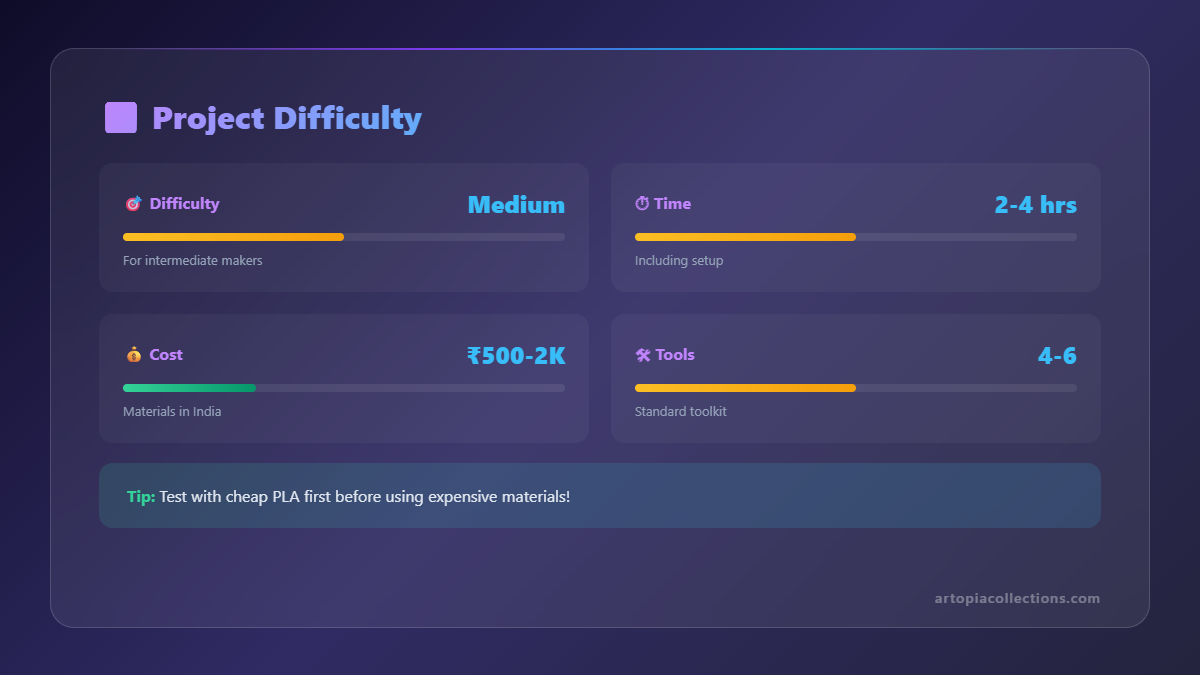 Honestly, these free apps have added a surprising amount of value to Artopia. I'm not replacing my skilled CAD designers, but for certain tasks, they're brilliant:
- Quick Prototyping/Concepting: A client shows me a small, broken plastic bracket. I can scan it with LiDAR, get a rough shape, and quickly model a replacement in CAD using the scan as a reference. It saves hours of measuring.
- Scaling and Replicating Artistic Pieces: Someone loves a small, intricate clay statue. I can photogrammetry scan it, scale it up or down, clean it, and print it using a good quality filament like eSUN PLA+ filament, which I often buy in bulk. It opens up new customization options.
- Capturing Organic Shapes: Trying to model a perfectly smooth, curved rock or a peculiar root structure? Almost impossible manually. A quick scan gets me 80% there.
- Inspiration and Archiving: Sometimes I just scan interesting objects for my personal design library or to archive things before they get lost or damaged. It's like a digital backup!
The thing is, even if I pay for a month of a premium subscription to one of these apps (which usually costs me less than a kilo of good quality Anycubic PLA filament, usually around ₹800-₹1200), the value I get from a few good scans often outweighs the cost. It’s about leveraging technology smart, you know?
Limitations and When to Consider an Upgrade
As much as I love these apps, they're not perfect. You'll hit a wall if you need:
- High Accuracy: For engineering-grade parts where tolerances are critical.
- Scanning Large Industrial Objects: Like a car engine or an entire building (though LiDAR can scan rooms, the detail isn't workshop-level).
- Scanning Very Small Objects: Things smaller than a few centimeters can be tricky to capture accurately without specialized macro lenses or dedicated tabletop scanners.
- Complex Geometries with Undercuts: Some parts are just too complex for phone-based photogrammetry to fully capture from all angles without immense effort.
If your business grows to a point where these limitations become a bottleneck, then it might be time to look at professional handheld 3D scanners like those from Revopoint or EinScan. They start around ₹50,000 and go well into lakhs, but offer significantly better accuracy and speed for complex tasks. For now, though, for me and for many hobbyists, these free phone apps are a brilliant stepping stone.
Final Thoughts: Just Get Scanning!
Look, the accessibility of 3D scanning is incredible now. What was once the domain of specialized labs is now literally in your pocket. While there's a learning curve, the satisfaction of scanning something and then watching your Creality Ender 3 V2 Neo (or whatever printer you use, I've got a couple of Anycubics myself) bring it to life is just... chef's kiss. It opens up so many possibilities for creative expression, problem-solving, and frankly, just having a lot of fun. My advice? Pick one of these apps, grab an interesting object, and start experimenting. Don't expect perfection on your first try, but enjoy the journey. Happy scanning, folks, and happy printing!


