Why Is My 3D Printer Making Grinding Noises and How to Fix It
Annoyed by your 3D printer's grinding noises? This guide will help you diagnose the root cause, from common mechanical issues to software glitches. Learn simple, effective steps to troubleshoot and silence your printer for smoother prints.
You know that feeling, right? You've got a killer print job running â maybe it's a custom prototype for a client, or a super cool display piece for your living room, or even just some intricate ear savers for the local hospital staff. The printer's humming along, lights are blinking, everything feels perfect. You walk away for a bit, grab a chai, and then suddenly⦠GRRRRIIIIIIIND! A sound that makes your stomach drop faster than a poorly calibrated Z-axis. That horrible, teeth-grating noise that screams, "Something is very, very wrong!" Yeah, Iâve been there more times than I care to admit, especially in the early days of starting ArtOpia Collections here in India. It's enough to make you want to pull your hair out, or worse, just smash the whole thing to bits. But hold on a second! Before you start planning your printer's funeral, let's take a deep breath. Most grinding noises aren't the end of the world, and honestly, they're often fixable with a bit of troubleshooting and some elbow grease.
So, you've got a grumpy printer. The thing is, "grinding" can mean a lot of different things, and it can come from a bunch of different places. It could be your extruder, your bed, your axes, or even the motor itself. Knowing where the sound is coming from is half the battle, trust me. I've spent hours trying to diagnose a sound I thought was coming from the Y-axis, only to find out it was a rogue piece of filament stuck under the print head! So, first things first: listen closely. Try to pinpoint the source. Then, and this is super important, stop the print immediately. No point in making things worse, right?
Extruder Grinding: The Dreaded Filament Slip
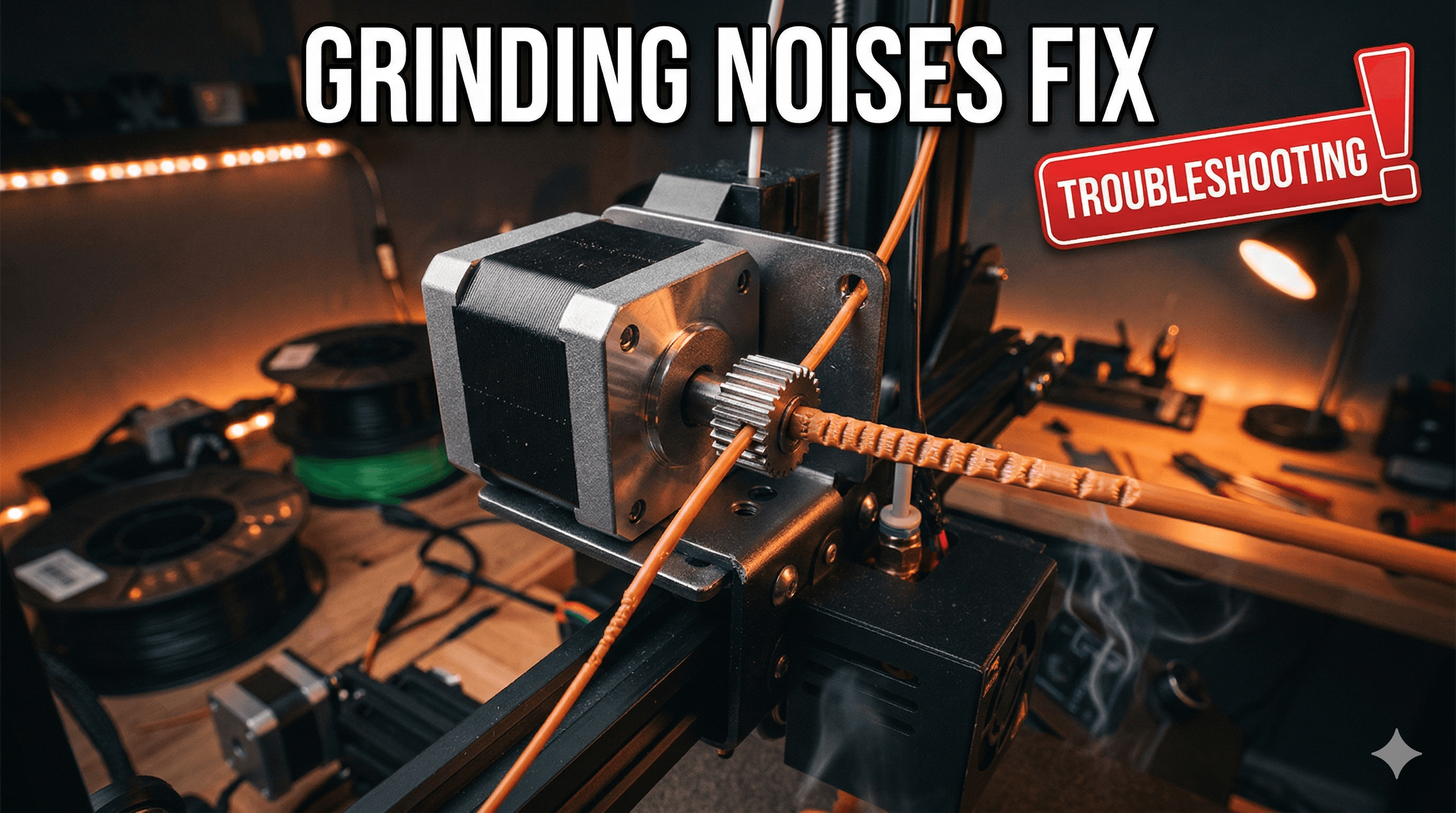
This is probably one of the most common grinding noises, and it's usually accompanied by a lovely little pile of plastic dust around your extruder gears. When your extruder is grinding, it generally means it's trying to push filament, but the filament isn't moving through the nozzle fast enough, or at all. Basically, the gear is chewing into the filament, but it can't grip new material to push it further.
What Causes It & How to Fix It:
1. Clogged Nozzle: This is the prime suspect, almost always. Whether it's a bit of burnt filament, some debris, or just a tiny piece of gunk, a clog will prevent the filament from exiting freely. And your extruder, bless its heart, will just keep trying to push it through, grinding away.

- How to fix: First, heat your hot end to printing temperature. Then, carefully remove the filament. You can try a "cold pull" â basically, heating the hot end, pushing some fresh filament through, letting it cool a bit (around 90-100°C for PLA), and then yanking it out quickly. This often pulls the clog with it. If that doesn't work, you might need to use a nozzle cleaning needle (you can get a pack for around â¹200-â¹300) or even replace the nozzle entirely. Honestly, I always keep a bunch of spare nozzles on hand. They're cheap enough on Amazon.in. Speaking of which, if you need some good quality nozzles, check out this nozzle kit. It's always good to have a variety.
2. Filament Tangle or Resistance: Sometimes, the problem isn't the hot end at all! If your filament spool isn't unwinding smoothly, or if the filament itself is tangled on the spool, your extruder has to work extra hard to pull it. This added resistance can lead to grinding.
- How to fix: Make sure your spool is rotating freely. Check for tangles or knots on the spool. Some cheap filament brands can be notorious for this. I've found that good quality PLA from brands like eSUN or Overture (which you can find readily in India) usually winds much better. And sometimes, you just need a better spool holder!
3. Extruder Gear Wear: Over time, the teeth on your extruder gear can wear down, especially if you print with abrasive filaments or just have a lot of print hours on your machine. Worn gears can't grip the filament effectively.
- How to fix: Inspect the gear. If the teeth look dull or rounded, it's time for a replacement. A new extruder gear set (often brass or hardened steel) won't cost you more than â¹500-â¹800, and it's a pretty straightforward swap.
4. Incorrect Extruder Tension: Your extruder usually has a spring-loaded idler arm that pushes the filament against the drive gear. If this tension is too loose, the gear won't grip well. If it's too tight, it can deform the filament and cause its own issues, but usually, grinding comes from too little tension or a worn spring.
- How to fix: Adjust the screw that controls the spring tension. Most printers have an adjustment screw. Just tweak it until you get a good grip without crushing the filament.
5. Hot End Temperature Too Low: If your hot end isn't hot enough for the filament you're using, the plastic won't melt quickly enough, creating resistance. Your extruder will then push against a semi-solid plug, leading to grinding.
- How to fix: Double-check your filament's recommended printing temperature and adjust your slicer settings accordingly. If you've just switched to PETG from PLA, for example, remember PETG needs higher temperatures!
6. Heat Creep: This is a sneaky one. Heat creep happens when heat travels too far up your hot end, softening the filament prematurely above the melt zone. This soft spot creates resistance, and the extruder grinds. It's often due to insufficient cooling for your hot end's heatsink.
- How to fix: Ensure your hot end fan is working correctly and blowing air effectively onto the heatsink. Clean any dust from the fan. Sometimes, upgrading to a better fan can help, but check for blockages first.
Motor Grinding or Skipping: Axes in Distress
This is a different kind of grinding, often more of a rhythmic "thunk-thunk-thunk" or a harsh, vibrating grind. It usually means your stepper motors are trying to move an axis, but something is stopping them, causing them to lose steps or simply vibrate aggressively. This is pretty common on the X, Y, or Z axes.
What Causes It & How to Fix It:
1. Obstructions on the Rails/Rods: This is often the simplest culprit. A stray piece of filament, dust, or even a small tool (don't ask me how I know this!) can get in the way of the print head or the bed's movement. The motor tries to push past it, can't, and then grinds.

- How to fix: Visually inspect all your axes (X, Y, Z). Manually move them back and forth (with the printer off, or motors disabled in the menu) to feel for any resistance. Clean the rods and rails thoroughly. I usually give mine a quick wipe down with a microfibre cloth every few prints.
2. Loose or Overly Tight Belts: Your X and Y axes are driven by timing belts. If a belt is too loose, the motor might skip teeth, causing a grinding sound and, importantly, layer shifting. If a belt is too tight, it puts excessive strain on the motor and bearings, which can also lead to grinding and premature wear.
- How to fix: Check the tension of your X and Y belts. They should be taut enough to pluck like a guitar string (but not painfully tight). Most printers, like the Ender 3 series, have tensioners you can adjust. Just make sure both belts have similar tension.
3. Worn V-wheels or Bearings: Many printers use V-wheels (delrin or polycarbonate wheels) that run along aluminum extrusions (like on Creality Ender 3s or Anycubic Vyper). These wheels can wear down, get flat spots, or simply become loose or too tight, causing rough movement and grinding noises. Similarly, linear rods use bearings (like on Prusa machines) that can wear out or lose lubrication.
- How to fix: Inspect your V-wheels. Are they visibly worn? Do they have flat spots? Are they wobbling? You can adjust the eccentric nuts on the V-wheels to tighten or loosen them. They should be tight enough to not wobble, but loose enough that you can barely spin them with your finger while the gantry/bed is stationary. If they're worn, replace them. A set of new V-wheels isn't very expensive, usually around â¹300-â¹500 for a pack. For linear bearings, clean them and re-lubricate them with a good quality grease or oil (avoid WD-40 for this, seriously). If they're still grinding, they might need replacing.
4. Stepper Driver Current (Vref): This is a bit more advanced, so proceed with caution! Each stepper motor has a driver that controls the current flowing to it. If the current is too low, the motor won't have enough torque and will skip steps, making a grinding or clicking noise. If it's too high, the motor can overheat, lose steps, and damage the driver.
- How to fix: Only attempt this if you're comfortable with electronics and know your printer's board. You'll need a multimeter to measure the Vref voltage on your stepper drivers. Look up the recommended Vref settings for your specific printer and stepper drivers (e.g., TMC2208, A4988). Incrementally adjust the potentiometer on the driver. If you're unsure, it's better to consult someone experienced or consider a mainboard upgrade with silent drivers that might have better default settings.
5. Z-axis Lead Screw Issues: If the grinding is coming from your Z-axis, check the lead screw(s). They can become dirty, dry, or even slightly bent. The brass nut that rides on the lead screw can also wear out.
- How to fix: Clean your lead screw thoroughly with a cloth. Then, apply a thin layer of lithium grease or Super Lube (available online for â¹400-â¹600) to the lead screw. Manually move the Z-axis up and down to distribute the lubricant. Check if the lead screw is straight. If it's bent, you'll need a replacement.
Bed/Nozzle Scraping: The Z-Offset Woes
This isn't always a "grinding" noise in the traditional sense, but it can sound like a harsh scrape or drag that's definitely not right. It happens when your nozzle is too close to the print bed, digging into it or into previously printed layers. This can damage your nozzle and your print surface, not to mention ruin prints!
What Causes It & How to Fix It:
1. Z-Offset Too Low: This is the most common cause. Your printer thinks the bed is lower than it actually is, so it pushes the nozzle too far down.
- How to fix: Adjust your Z-offset! Most printers allow you to do this directly from the menu while printing the first layer. If you have an auto-bed leveling sensor (like a BLTouch or CRTouch), you'll set your Z-offset after running the mesh. For manual leveling, simply re-level your bed, ensuring there's a slight gap (paper thickness) between the nozzle and the bed. In my experience, even a hair's breadth difference makes a massive impact.
2. Uneven or Warped Bed: Even after leveling, some beds (especially cheaper aluminium ones) can have slight warps or high/low spots. This means one part of your print might be perfect, while another gets scraped.
- How to fix: A glass bed or a PEI flex plate can help smooth out surface inconsistencies. You can get good quality tempered glass beds for around â¹800-â¹1200. If you have a warped bed, auto-bed leveling is almost a necessity. If you don't have one, consider installing a BLTouch or CRTouch sensor; they're relatively affordable now, maybe â¹1500-â¹2500, and make life so much easier.
3. Gantry Sag/Unlevel X-axis: Less common, but sometimes your X-gantry (the bar your hot end moves on) can become unlevel with respect to the bed. This means one side of the nozzle is closer to the bed than the other.
- How to fix: Check that your X-gantry is perfectly level. On many printers, this involves adjusting the eccentric nuts on the right side of the gantry or ensuring the lead screw coupler is tight and the lead screw itself is straight and seated properly.
General Troubleshooting & Prevention Tips from ArtOpia Collections
Look, running a 3D printing business, even a small one like mine, means your machines are running constantly. You need them to be reliable. So, prevention is key, but quick, confident troubleshooting is your next best friend. Here are a few things I always tell my friends and customers:
- Isolate the Sound: Seriously, take a moment. Move each axis independently. Try extruding filament manually. This helps pinpoint the exact area.
- Unplug for Safety: Before you start poking around inside the machine, especially with the hot end, unplug it! Better safe than sorry, right?
- Start Simple: Don't immediately assume the worst (like a fried stepper driver). Check the easy stuff first: filament path, clear obstructions, belt tension.
- Lubricate & Clean Regularly: I can't stress this enough. A clean printer is a happy printer. Use some isopropyl alcohol for plastic debris, and appropriate lubricant for lead screws and smooth rods.
- Keep Spares Handy: Nozzles, V-wheels, even a spare heat break or thermistor can save you a whole day of downtime. For filament, you can find a good range on Amazon.in, like various PLA filaments. It's smart to stock up!
- Don't Force It: If something feels jammed, don't just crank on it. You'll strip screws or bend components. Investigate why it's jammed.
I remember one time, I had a huge order for some custom architectural models â you know, the detailed ones we sell on our ArtOpia Collections store. My Creality CR-10S Pro V2 suddenly started making this awful grinding noise on the Y-axis. I panicked! I thought, "Oh no, a motor's gone, the belts are stripped!" I spent a good hour trying to adjust everything, checking the eccentric nuts, feeling the belts, even looking at the stepper motor wires. Turned out, a tiny, almost invisible piece of cured resin (I also do resin printing sometimes, it's a whole other beast!) had fallen onto the Y-axis linear rail and was causing just enough friction for the motor to skip. Took it out, and boom, smooth as butter. It's often the small, silly things!
So, there you have it. A grinding 3D printer isn't always a death knell. It's usually a cry for help, a sign that something needs a little attention, a little adjustment, or perhaps a small replacement. Don't get discouraged! We all go through these troubleshooting journeys. It's part of the magic of 3D printing, honestly. And hey, if you've got your own stories of printer woes and glorious fixes, drop a comment below. We're all in this maker community together!


